By the tiswa editorial team, from the official sources listed at the end of this guide. How we write our guides
A LinkedIn internship profile is not a list of everything you have done. It is a short, searchable page that tells a recruiter which placement you want, what you can already do, and where you can start. Most students fill their profile with general phrases such as “motivated student,” then wonder why nobody reaches out. This guide shows how to write for co-op and summer training, and how to spread the work across a semester.
Start with the job posts
Before you write a word, open three internship or co-op posts in your field and copy the terms that repeat: tools, skills and job titles. Recruiters search with those words. Do not copy the posts in full. Keep only the terms that genuinely describe what you can do, and leave the rest for when you have learned it.
Headline: placement and major together
The headline is the first line people see in search results. Name your major, the kind of placement you want, and one tool you use well. A simple pattern works: student of [major] at [university], skilled in [tool or skill], looking for a co-op or summer placement in [field].
Digital marketing student at [University] | Canva and Google Analytics | Seeking a co-op placement in content management
Industrial engineering student at [University] | Excel and SQL | Seeking a summer placement in planning and quality
Computer science student at [University] | Python and data analysis | Co-op placement in app development
Notice that each example names the major, one tool and the kind of opportunity. Those three pieces are what a recruiter is most likely to search for, and they are what you want them to see first.
About: three sentences that say what you want
Write the About section as if you were explaining yourself to a manager in one minute: what you study, what you have built or completed, and what you want from the next placement. You do not need a long introduction. The first two lines are what people see before “see more,” so make those lines carry the message.
I study [major] at [university] and recently completed [course or project], where I used [tool or skill].
I am looking for a [co-op or summer] placement in [field] during [semester or summer], and I want to learn [specific skill] from a working team.
I can contribute [skill you already have]. You can reach me through [email or my public profile link].
Plan across the semester
A placement profile is built over time. Each stage of the semester adds one piece, so when application season arrives you send a finished profile rather than a rough draft. The table below splits the work across a typical term.
| When | What to add | Why it matters |
|---|---|---|
| Start of the semester | A clear photo and a headline that names your major | The profile is ready early and can appear in search |
| Middle of the semester | One project with a two-line description | Recruiters look for real work, not only claims |
| Before the break | Skills that match the posts you read | Teammates from projects can endorse them |
| Before application season | An updated About section and your open-to-work settings | You apply with a complete profile, not a draft |

Set the open-to-work option with care. Choose who can see it, and remember that you can edit or remove it at any time. The open to work guide explains the audiences in more detail.
When you find a posting
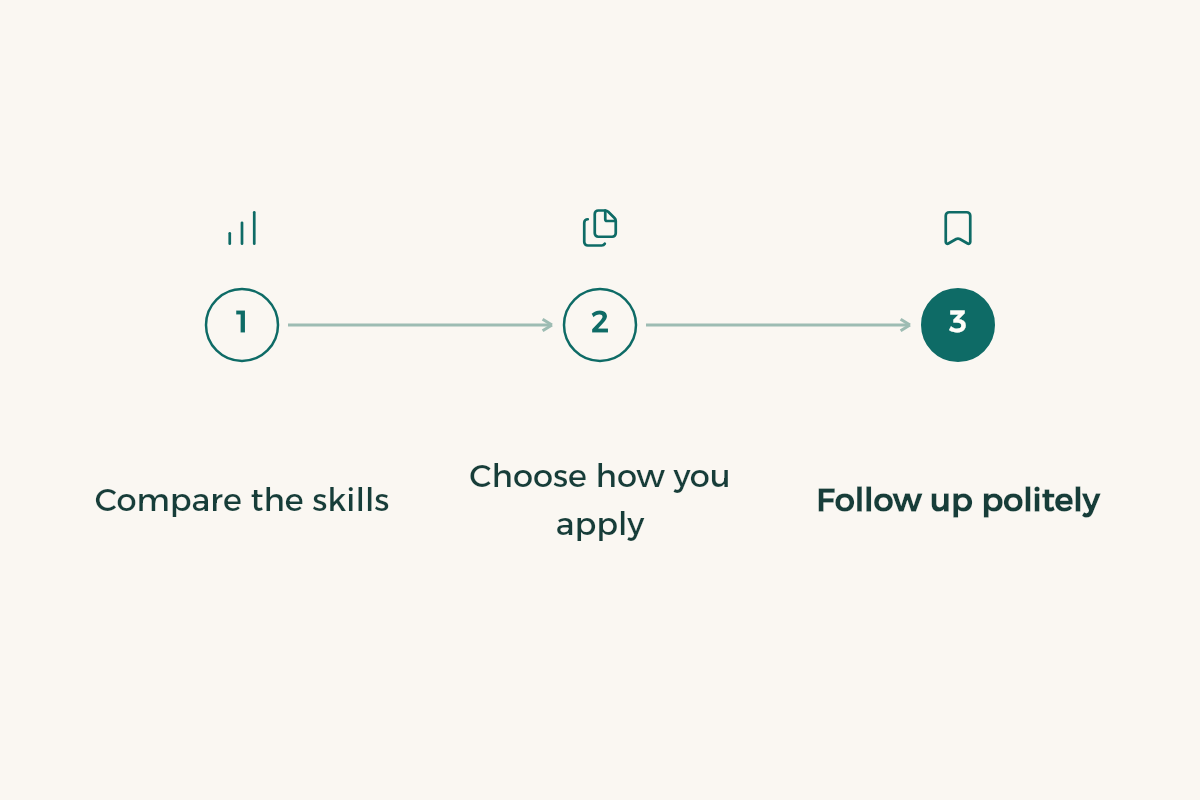
- Compare the skills
Check the skills in the post against your profile. Add what you genuinely have, and leave the rest for later.
- Choose how you apply
Easy Apply means you apply on LinkedIn itself, so have your profile ready before you press it. If the post sends you to the company’s own site, keep a copy of your details so they match your profile. For filters and alerts, read the job search guide.
- Follow up politely
Send one short message after a few days rather than daily reminders. Name the placement so the reader knows which one you mean.
After the placement
A placement does not end when you sign the paperwork. Add what you did while it is still fresh, ask a supervisor for a recommendation if the role suits one, and update the headline so it reflects what you learned. A profile that follows your progress helps the next application as well. To understand the difference between co-op and summer training, read the co-op guide and the summer training guide.
Link each skill to a piece of work
A skill on its own is just a word. It becomes evidence when it sits next to a project, a lab, a club role or a class task. For every skill you add, ask where you used it. If the honest answer is nowhere yet, leave the skill off until you have a piece of work to support it.
Before each application, open the posting next to your profile and compare them line by line. If the posting asks for a tool or skill you have, make sure it appears in your skills and in at least one project description, in the same words the posting uses.