By the tiswa editorial team, from the official sources listed at the end of this guide. How we write our guides
Knowing how to write on a PDF is a skill every student needs: a co-op training form that wants your name, student ID and signature, a drop and add request, or a letter you must sign and email back. The old way was to print it, write with a pen and scan it again. Today you can do all of that on your device. This guide explains the difference between writing on top of a PDF and editing its text, gives two free methods step by step, and adds tips for university forms.
Write on top, or edit the text?
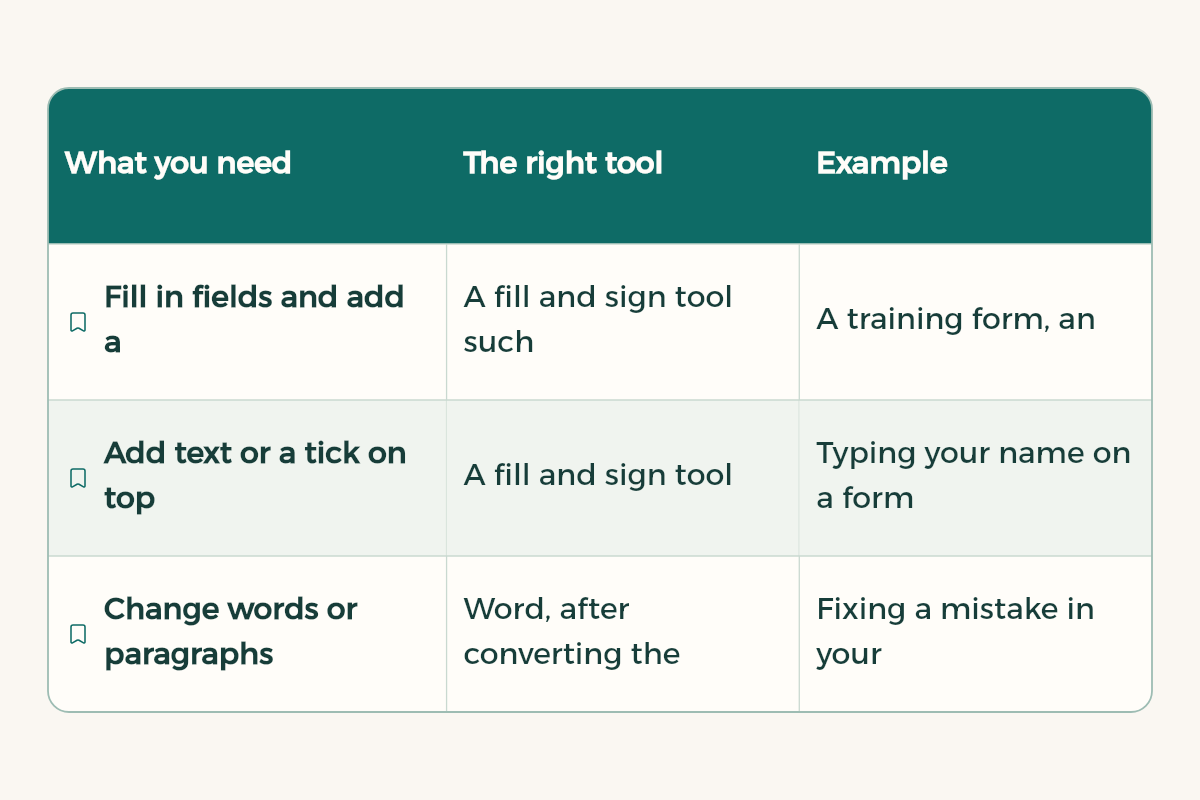
Before you start, decide exactly what you need, because the tool is different:
| What you need | The right tool | Example |
|---|---|---|
| Fill in fields and add a signature | A fill and sign tool such as Adobe's Fill & Sign | A training form, an application, a declaration |
| Add text or a tick on top of the page | A fill and sign tool | Typing your name on a form that has no fillable fields |
| Change words or paragraphs already in the file | Word, after converting the file | Fixing a mistake in your old paper saved as PDF |
| Study notes on a summary | A notes app or PDF reader on your tablet | Highlighting and handwriting on lecture slides |
Method 1: Adobe's tool to fill and sign a PDF
The Fill & Sign tool on the Adobe Acrobat site runs in the browser with nothing to install. According to its official page, you can fill in form fields, add checkmarks, lines and text, and place your signature or initials. The steps:
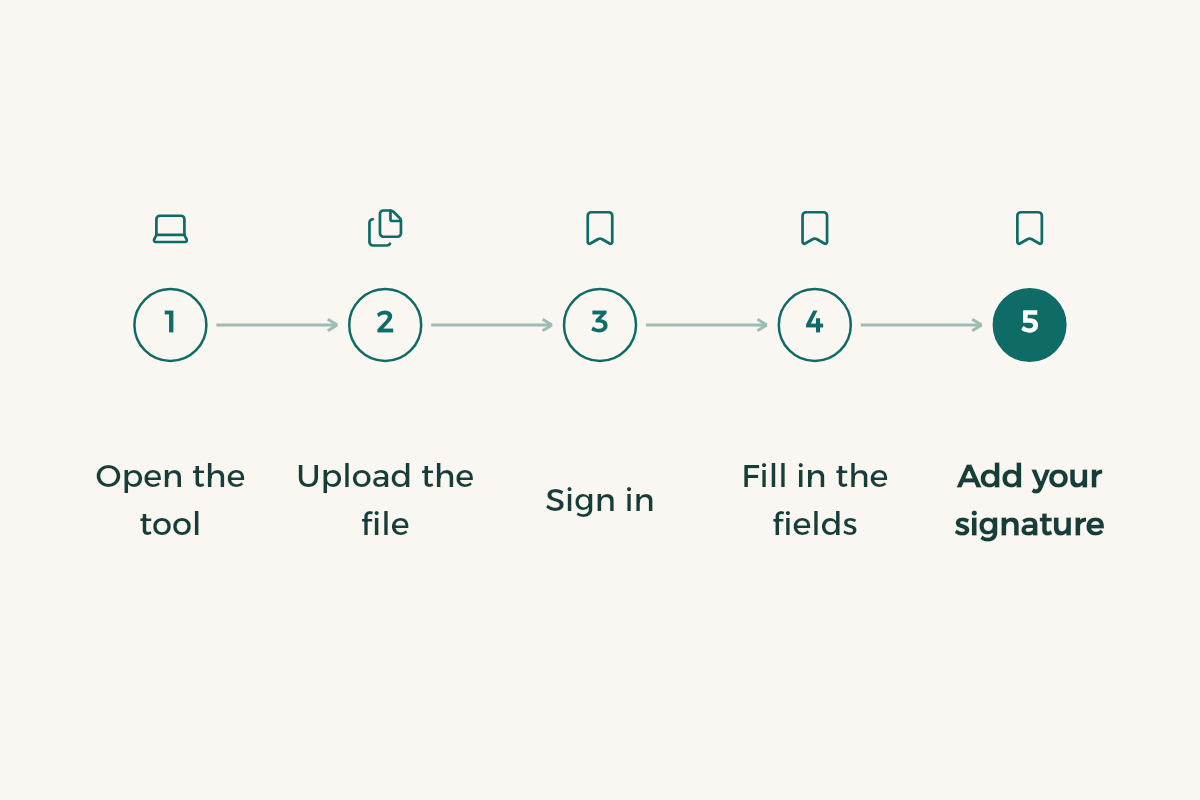
- Open the tool
Go to the Fill & Sign or Sign PDF page on the official Adobe Acrobat site.
- Upload the file
Select the file or drag it onto the page, and wait for it to upload to Acrobat on the web.
- Sign in
Adobe says you must be signed in to complete a fillable form. Signing in also keeps the file saved in your account.
- Fill in the fields
From the Sign panel, fill in the form fields, and add checkmarks, lines or text wherever you need them.
- Add your signature
Place your signature or initials in the right spot.
- Download or share
Continue to the next step, then download the completed file or generate a link to share it.
- The tool runs in a supported browser, and Adobe's page says a mobile app is available too.
- Requesting signatures from other people and seeing audit trails may need a paid Acrobat plan.
- Uploaded files are handled by Adobe's servers and deleted unless you sign in to save them. Since completing a form needs sign-in, the file stays in your account until you delete it.
Method 2: edit the text itself in Word
If you need to change words or numbers inside the file rather than write on top, Word opens a PDF and converts it into an editable document. According to Microsoft's support page:
- Open the file
In Word, choose File, then Open, and find the PDF. You may need Browse to reach the folder.
- Accept the conversion
Word says it will make a copy and convert the contents. Select OK. The original PDF is not changed.
- Type and edit
Change the text or add your details where needed, like any Word document.
- Save as PDF
From the Save menu, choose PDF in the Save as list, then OK, so the file goes back in the format you were asked for.
Remember that Microsoft says this works best with PDFs that are mostly text, and that the converted document might not match the original page for page. So it suits editing your own documents, and is not the best choice for an official form designed with tables and logos, whose layout may shift. The full walkthrough is in convert PDF to Word.
On your phone and iPad
Phones and iPads have built-in markup tools for writing and drawing on PDFs and images, and notes apps let you handwrite on your summaries. If the form is on paper in your hand, scan it first with your phone camera so it becomes a clean PDF, then fill it in with either method. Scanning steps are in scanning documents on iPhone, and handwriting apps are in note-taking apps for iPad.
Tips for university forms
- Read the whole form before filling it in, and note which fields are yours and which belong to the department or advisor.
- Write your name exactly as it appears in your academic record, in Arabic and English if both are asked for.
- Use a clear font at a readable size, and do not type more than a field can hold so it does not cover what follows.
- Save a copy with a clear name such as training-form-yourname before sending, and keep it until the request is approved.
- If you must upload the form with other documents as one file, combine them with the steps in merge PDF files.
- If the final file is too large for the system, shrink it with compress a PDF.
Worked example: a co-op training form
Say a training placement sends you an acceptance form as a PDF and asks for it back signed, together with your CV and transcript, in one file. Here is a practical order from start to finish:
- Keep an original
Download the form and save an untouched copy, so you can go back to it if you make a mistake.
- Gather your details first
Have ready your full name as in your record, student ID, major, phone number, university email and training period.
- Fill in the form
Upload it to Fill & Sign, sign in, and fill in the fields one by one in the order they appear.
- Sign in the right place
Add your signature in the student field only, and leave the advisor's or company's fields empty.
- Download and check
Download the file, open it, and make sure every entry sits inside its field.
- Combine the files
Merge the form with your CV and transcript into one file in the requested order, then send it with a clear name.
To write the CV itself in a way that suits training placements, read CV for students.
Electronic signatures: when are they enough?
Most internal university forms accept a signature added to a PDF, but some offices require a handwritten signature on a printed page or a signature through a specific official system. Read the form's instructions or ask the department before sending, so the request does not come back to you. And never sign a file you have not read in full: an electronic signature means you agree to what is in it, just like a signature on paper.
Common mistakes
- Converting an official form to Word and back to PDF, which changes its design and may get it rejected. Use a fill tool instead.
- Printing the form, filling it by pen and then taking a crooked ordinary photo, so it arrives unreadable.
- Forgetting to save after filling in, or sending the blank copy instead of the completed one.
- Editing the text of a file that is not yours, such as an official letter or a transcript. That is not acceptable and can lead to a disciplinary case.
Every office and file guide is in the tools section.
- Adobe: Adobe offers 70% off Creative Cloud Pro, first year to university students in Saudi Arabia for SAR 86.17, 71% less than the regular SAR 293.25.
- WPS Office: WPS Office offers WPS Office for free to university students in Saudi Arabia.
- Google AI: Google AI offers Google AI Plus free for a year to university students in Saudi Arabia.