By the tiswa editorial team, from the official sources listed at the end of this guide. How we write our guides
You need to compress a PDF when your university system refuses an upload because the file is too big, or when email will not send your project to a training placement. Usually the cause is high-resolution images inside: pages scanned with your phone, screenshots, or photos in a lab report. This guide shows two free ways to shrink a file step by step, when to pick each compression level, and simple habits that keep files small from the start.
Why do PDFs get so big?
Text alone takes almost no space. A twenty-page text paper can be tiny, while a single page scanned with a modern phone camera can be bigger than the whole paper. So before you compress, ask what is in the file.
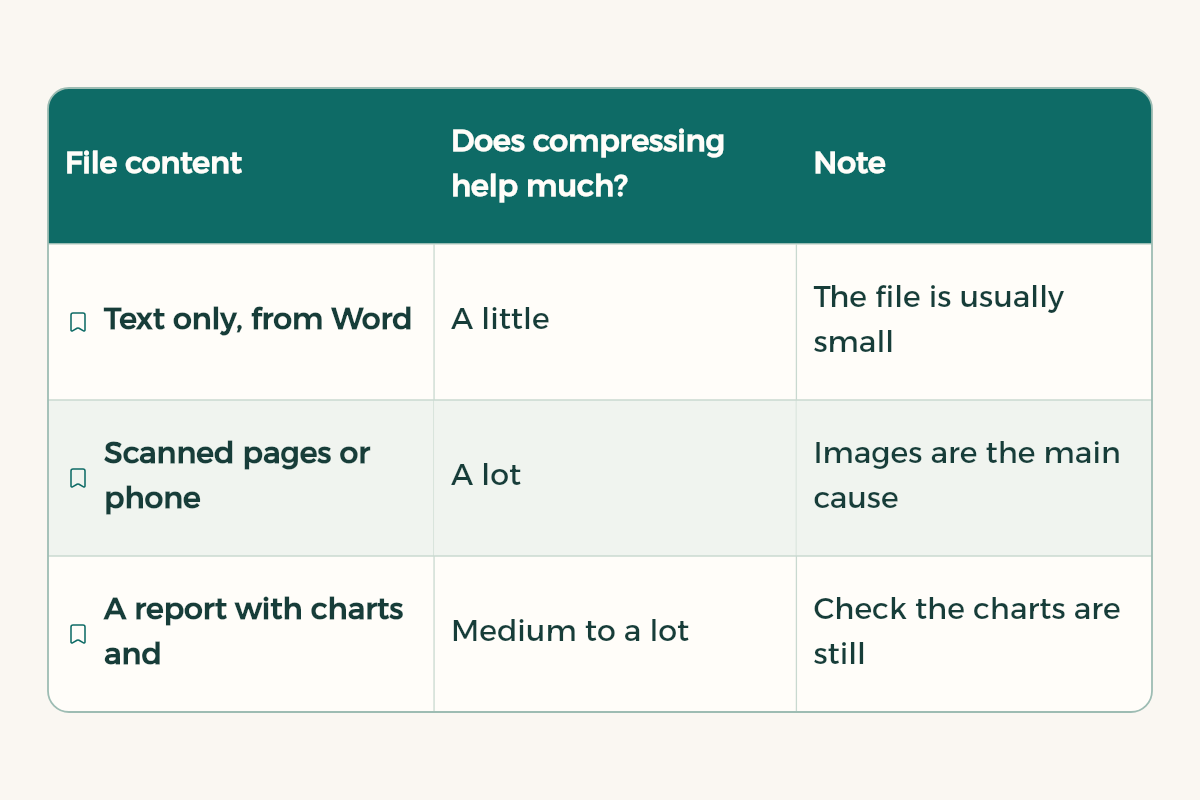
| File content | Does compressing help much? | Note |
|---|---|---|
| Text only, from Word | A little | The file is usually small already |
| Scanned pages or phone photos | A lot | Images are the main cause of size |
| A report with charts and screenshots | Medium to a lot | Check the charts are still clear after compressing |
| A presentation saved as PDF | Usually a lot | Images and backgrounds add size |
Method 1: Adobe's free PDF compressor
The Compress PDF tool on the Adobe Acrobat site works in any browser. According to its official page, basic compression needs no sign-up, credit card or subscription, and it accepts files up to 2GB. The steps:
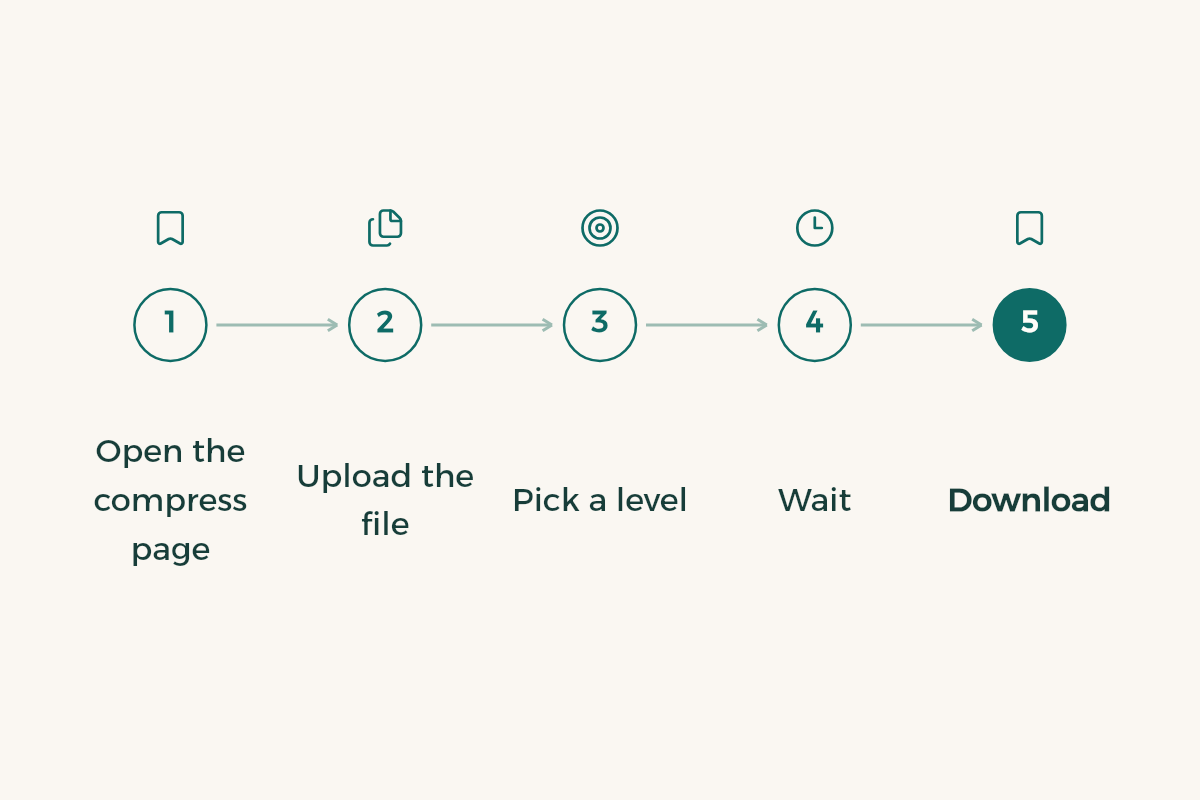
- Open the compress page
Go to the Compress PDF page on the official Adobe Acrobat site.
- Upload the file
Click Select a file or drag your PDF into the drop zone.
- Pick a level
Choose High, Medium or Low. Each one balances quality against file size.
- Wait
After the upload, Acrobat reduces the file size automatically.
- Download
Download the compressed file straight away, or sign in if you want to save or share it.
Which level should you choose? As a rule, stronger compression gives a smaller file with lower image quality. Some practical suggestions:
| Level | When to use it |
|---|---|
| High | A very large scan that only needs to be readable, such as a signed form or solution pages |
| Medium | Most assignments and reports, and a good starting point |
| Low | A report with charts, microscope images or diagrams that must stay sharp |
- Unlimited compression, batch processing and advanced settings come with paid Acrobat plans.
- Signing in is needed to save the compressed file to your account or share it, not to download it.
- Uploaded files are handled by Adobe's servers, and Adobe says they are deleted unless you sign in to save them.
Method 2: Preview on Mac
The built-in Preview app on a Mac reduces file size without any website. Apple's official guide gives two ways.
- Open the file
Open the PDF in Preview.
- Choose Export
From the menu, choose File, then Export.
- Pick the filter
In the Quartz Filter menu, choose Reduce File Size.
- Save
Click Save. If asked to replace the original, confirm, or cancel and type a new name in the Export As field.
For more control over the result, the manual way gives you separate options in the same export window:
- Open the export window
File, then Export, as above.
- Tick what you need
Create Linearized PDF makes the file load faster in web browsers. Optimize images for screen shrinks images for on-screen viewing. Save images as JPEG converts images to JPEG, which uses compression.
- Save under a new name
Click Save, and give the compressed copy a new name so the original stays intact.
If the file is still not small enough
Sometimes you compress and the file is still over the limit. Do not compress the compressed copy again and again, because each pass costs image clarity without saving much space. Go back to the original and find the cause. If it is a stack of scanned pages, rescan only the pages that matter with a scanning app instead of camera photos. If it is a Word report, open the source document, swap the large images for smaller ones and save it as PDF again. If it includes long appendices your instructor does not need, remove them or put them in a separate file.
If you do not have the source file and the text is what matters, converting the PDF to Word and saving it as PDF again can give a much lighter file, because the text becomes characters instead of images. Microsoft says this works best with PDFs that are mostly text. The full walkthrough is in convert PDF to Word.
Compress before you email it
Email has an attachment size limit, and a large file can bounce or arrive late. Before sending a project or CV to a training placement or an instructor, compress it at Medium and open it afterwards to check that logos, signatures and tables are still clear. A small, sharp file looks professional; a huge one that takes minutes to open does the opposite.
Keep the file small from the start
The easiest compression is the one you never need. These habits keep your files small the first time:
- Scan paper with a scanning app instead of taking ordinary photos, since scanning apps crop the edges and straighten the page. See scanning documents on iPhone.
- In Word and PowerPoint, do not paste images far larger than the page needs. A page-wide image is enough.
- If the report is text, save it as PDF straight from Word instead of printing and scanning it again.
- When combining several files, check each part first, because one high-resolution scan can be the whole problem. Combining is covered in merge PDF files.
- In a presentation, photo backgrounds on every slide add a lot of size. A plain colour background is lighter and easier to read.
Quick steps when your university system rejects the file
- Find the limit
Read the assignment instructions or the error message to learn the maximum size. Upload steps are in the Blackboard guide.
- Compress at Medium
Try Medium in Adobe's tool or Reduce File Size in Preview.
- Open and check it
Make sure the text is readable and the charts are clear before uploading.
- Go further if needed
If it is still over the limit, try High, or split it into two parts if your instructor allows it.
- Upload early
Do not leave the upload to the last minutes before the deadline, when the system can slow down under load.
If you need to edit the text after compressing, read convert PDF to Word. Every software guide is in the tools section.
- Adobe: Adobe offers 70% off Creative Cloud Pro, first year to university students in Saudi Arabia for SAR 86.17, 71% less than the regular SAR 293.25.
- WPS Office: WPS Office offers WPS Office for free to university students in Saudi Arabia.
- Google AI: Google AI offers Google AI Plus free for a year to university students in Saudi Arabia.