By the tiswa editorial team, from the official sources listed at the end of this guide. How we write our guides
Students need to merge PDF files more often than they expect. Your instructor wants one file for the assignment, and you have a Word cover page, handwritten solutions you scanned, and an Excel appendix. Or a training placement asks for one file with your CV, transcript and letter. This guide shows three free ways to combine files into a single PDF, the official limits of each, and tips for ordering pages so the file arrives the way you intended.
Which method fits?
| Method | Works on | Best for |
|---|---|---|
| Adobe's web tool | Any device with a browser | A quick merge with nothing to install |
| Preview | Mac only | Merging without uploading anything, and picking specific pages |
| Word, then save as PDF | Any device with Word | When most of the parts are Word documents already |

Method 1: Adobe's free merge tool
Adobe runs a free merge tool on the Acrobat site. According to its page, you do not need to sign in to merge and download, and no watermark is added to the result. The steps:
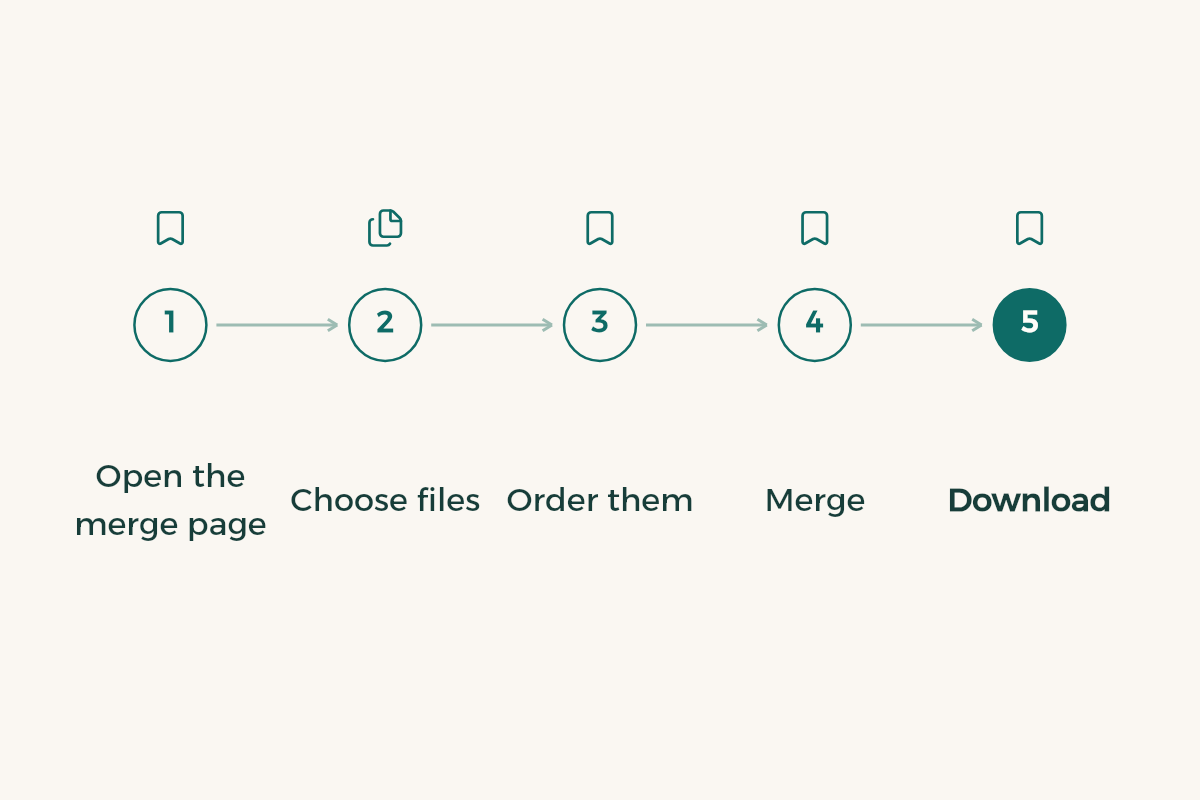
- Open the merge page
Go to the Merge PDF page on the official Adobe Acrobat site.
- Choose files
Click Select files or drag the files into the drop zone, and pick every PDF you want to combine.
- Order them
Reorder the files if needed. The file at the top becomes the first section of the merged PDF.
- Merge
Click Merge files.
- Download
Download the merged file straight away, or sign in if you want to share it by link.
The limits Adobe lists for the free tool:
| Limit | Value |
|---|---|
| Files in one merge | Up to 100 |
| Pages in the merged PDF | Up to 1,500 |
| Pages per individual file | Up to 500 |
| Watermark | None |
- The free tool merges PDF files only. To combine Word, Excel, PowerPoint or image files, convert them to PDF first, then merge.
- Password-protected PDFs need each password entered before merging, or those files are left out.
- Signing in is only needed to save the file to your account, organise individual pages, or share a link.
Method 2: Preview on Mac
On a Mac you do not need any website. The built-in Preview app combines PDFs by drag and drop, according to Apple's official guide:
- Open the files
Open the PDFs you want to combine in Preview.
- Show thumbnails
In each open PDF, choose View, then Thumbnails, so the page thumbnails appear in the sidebar.
- Drag pages across
Drag thumbnails from one PDF's sidebar into the other PDF's sidebar. To pick pages that are not next to each other, Command-click each one first.
- Drop them in place
Drop the pages at the end of the document or between existing pages. You can also drag thumbnails within a sidebar to reorder them.
- Add a whole file
To add an entire PDF, drag its icon from the Finder into the sidebar of the open document.
Preview's advantage is that you can pick particular pages, not just whole files. For example, take pages one and three of your transcript and place them right after your CV. More Mac tips are in MacBook tips for students.
Method 3: combine in Word, then save as PDF
If most of the parts are Word documents, the easiest route is to gather them into one Word document and save it as PDF once. Even if one part is a PDF, Word can open it and convert it into an editable copy, according to Microsoft's support page, though this works best with PDFs that are mostly text.
- Start with the cover
Open the Word document with your cover page or first part.
- Add the other parts
Copy the content of the other documents and paste it in order, with a page break between parts.
- Open any PDF you need
If one part is a text PDF, open it in Word from File, Open. Word converts a copy and leaves the original untouched. Then copy its content across.
- Save as PDF
From the Save menu, choose PDF in the Save as list, then OK.
This method gives you consistent formatting on every page: one font, one set of margins, one page numbering. If the file is a paper, apply format a research paper in Word before saving.
Tips before you upload the merged file
- Number the files before merging, such as 01-cover, 02-solutions, 03-appendix, so ordering is easy.
- Open the result and page through all of it before uploading. A sideways or duplicated page looks careless.
- If some parts are pages from your notebook, scan them properly as in scanning documents on iPhone rather than taking ordinary photos.
- If the merged file is too large for your university's system, shrink it with the steps in compress a PDF.
- Check the allowed file type and size on the assignment page, and see the Blackboard guide for uploading and confirming submission.
Common merging mistakes
- Merging in the wrong order and noticing only after uploading. In Adobe's tool the top file comes first, so check the list before you merge.
- Trying to merge a Word file or an image directly in the free tool. Save each part as PDF first, since the free tool only accepts PDFs.
- Forgetting a password-protected file, which is then left out of the result without you noticing. Check the page count of the final file.
- Working on the original files in Preview and finding the changes were saved into them automatically. Always work on copies.
- Uploading a very large file before checking your university system's limit, then watching the upload fail minutes before the deadline.
- Mixing page sizes, such as an A4 page next to a tall phone photo. Scan paper pages with a scanning app that fixes the size.
Examples from student life
| Situation | What you combine | Suggested method |
|---|---|---|
| Assignment with handwritten answers | A Word cover plus scanned solution pages | Save the cover as PDF, then merge with Adobe's tool |
| Co-op training application | CV, transcript and introduction letter | Preview on Mac if available, since the files are personal |
| Lab report | The Word report, Excel tables and figures | Gather everything in Word, then save as PDF |
| Exam revision pack | Summaries from several lectures | Adobe's tool, up to 100 files in one merge |
If you then need to type your name or sign the cover page, read write on a PDF. Every office software guide is in the tools section.
- Adobe: Adobe offers 70% off Creative Cloud Pro, first year to university students in Saudi Arabia for SAR 86.17, 71% less than the regular SAR 293.25.
- WPS Office: WPS Office offers WPS Office for free to university students in Saudi Arabia.
- Google AI: Google AI offers Google AI Plus free for a year to university students in Saudi Arabia.