By the tiswa editorial team, from the official sources listed at the end of this guide. How we write our guides
These MacBook tips for students come from Apple official Mac User Guide, picked for what actually changes a student day: finding a file in two seconds, capturing part of a slide, keeping the reference and the report side by side, and stretching the battery through a long day of lectures. If you are coming from Windows, there is a section for you below.
1. Spotlight: the fastest way to anything
Press Command-Space bar and start typing. Files, apps and messages show up instantly. A few things many people miss:
- Type a calculation such as 245*0.15 and get the answer right away.
- Convert units and currencies by typing them, such as 50 dollars or 3 miles.
- Select a result and press the Space bar to preview it without opening it.
2. Screenshots with no extra app
| Shortcut | What it does |
|---|---|
| Shift-Command-3 | Capture the whole screen |
| Shift-Command-4 | Capture a part you select with the pointer |
| Shift-Command-5 | Screenshot app: captures and screen recording with options |
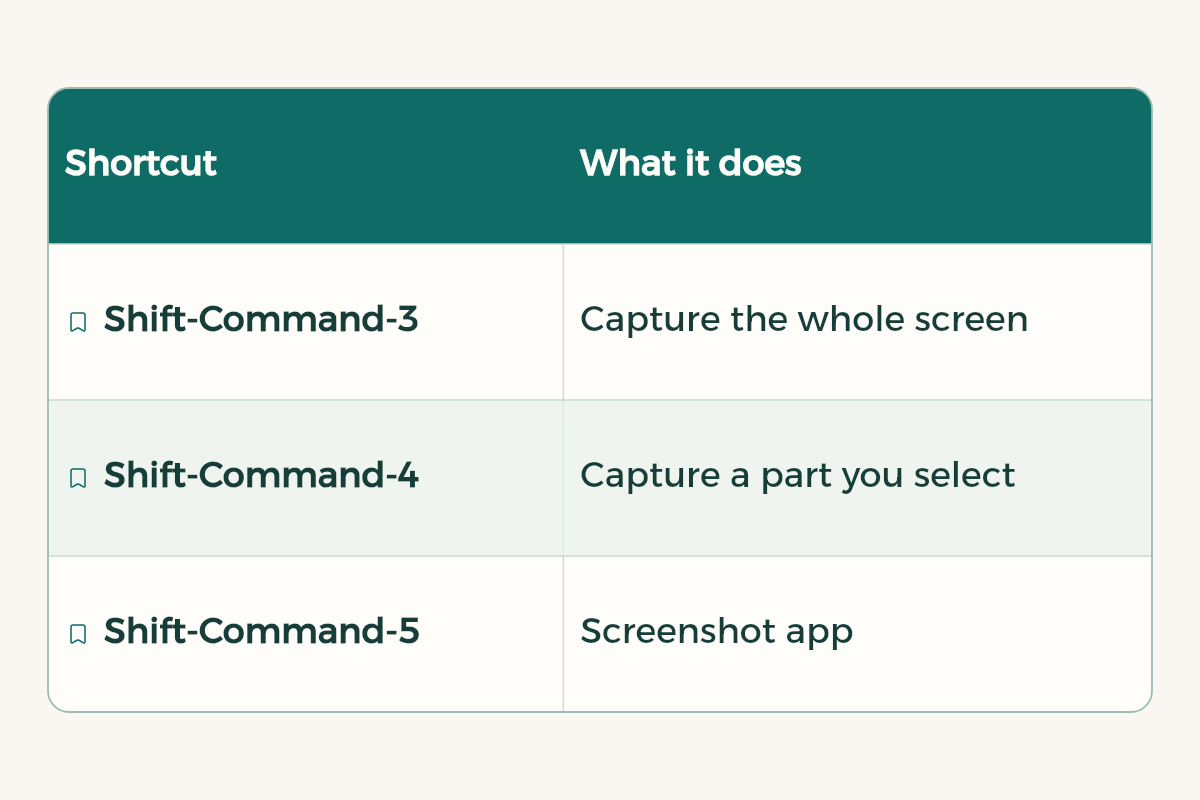
In Shift-Command-5, click Options and change where screenshots are saved, such as a folder called Lecture shots instead of the desktop. The same menu lets you set a timer or turn off Show Floating Thumbnail if it gets in the way.
3. Reference and report side by side
- Hold the green button
Hold the pointer over the green button in the top corner of the window.
- Pick a side
Choose Full Screen > Left of Screen or Right of Screen.
- Pick the second app
On the other side of the screen, click the second app.
- Resize
Drag the divider in the middle left or right.
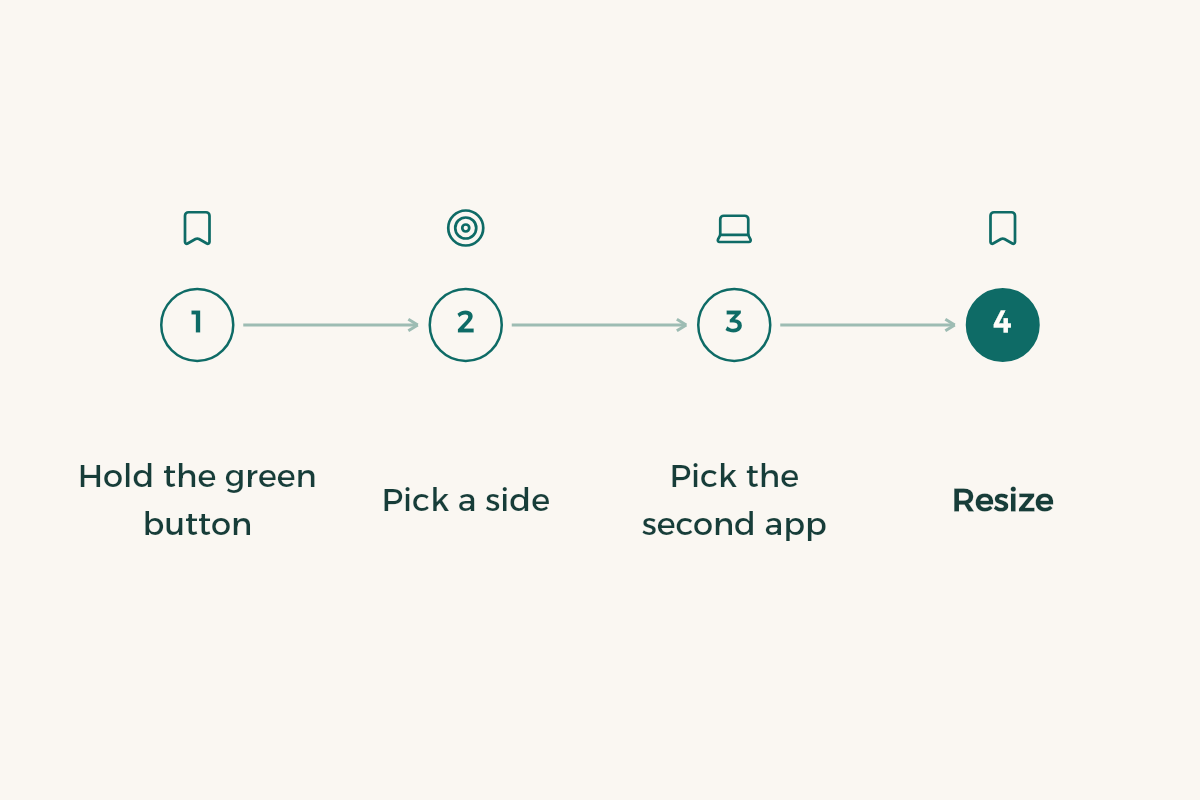
This is called Split View. If you prefer another layout, turn on Stage Manager in System Settings > Desktop & Dock, which keeps your current app in the center and the rest on the side.
4. Battery for a long lecture day
- Open battery settings
Choose Apple menu > System Settings, then click Battery in the sidebar.
- Low Power Mode
Click the pop-up menu next to Low Power Mode and choose Only on Battery.
- Battery Health
Click the Info button next to Battery Health, then turn on Optimized Battery Charging and Manage battery longevity.
5. Copy on iPhone, paste on Mac
Universal Clipboard lets you copy text or an image on iPhone and paste it straight on Mac. You need the same Apple Account on both, Wi-Fi and Bluetooth on, Handoff turned on, and the devices near each other. Example: copy slide text with Live Text on the phone and paste it into your report on the Mac. The method is in copy text from an image on iPhone.
6. Arabic keyboard on Mac
- Open the setting
Choose Apple menu > System Settings > Keyboard, go to Text Input, then click Edit.
- Add Arabic
Click the Add button (+), choose Arabic, then pick a layout.
- Switch quickly
Press Control-Space bar for the previous input source, or the fn/Globe key if you set it to change input source.
You can also turn on Use the Caps Lock key to switch to and from ABC, which turns Caps Lock into a language key. All the shortcuts in one table next to Windows are in keyboard shortcuts for Windows and Mac.
7. Shortcuts worth memorizing
| Shortcut | What it does |
|---|---|
| Command-Tab | Switch between open apps |
| Command-Q | Quit the app |
| Option-Command-Esc | Force quit a frozen app |
| Control-Command-Q | Lock the screen |
| Command-Comma | Open settings for the current app |
| Control-Command-Space bar | Emoji and symbols |
8. A Quick Note without leaving your report
While writing a report or reading a source, press fn-Q (or Globe-Q) to open a Quick Note. Jot the idea or link, and it is saved in the Quick Notes folder and shows up on iPhone and iPad. Handy for collecting sources before you write the reference list.
9. Organize university files from the start
- Make a folder per semester with a folder per course inside iCloud Drive, so the same files reach your iPhone and iPad.
- Use colored tags in Finder to tell submitted work from work in progress.
- Do not let the desktop become storage: change where screenshots are saved as shown above.
10. Focus on the Mac
If you made a Study Focus on iPhone and turned on Share Across Devices, it turns on for the Mac too. Setup is in iPhone focus mode for studying.
Coming from Windows? The key differences
- Command on a Mac does most of what Ctrl does on Windows: Command-C to copy, Command-V to paste.
- Closing a window does not mean quitting the app. Use Command-Q.
- Finder is the file manager, and Spotlight replaces the Start menu search.
- Move a file to the Trash with Command-Delete, and delete a word while typing with Option-Delete.
- University software: most universities give you Microsoft 365 free with your university email. See university email benefits and free software for students.
Have not bought the Mac yet?
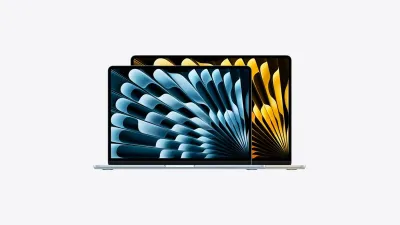
Apple education pricing covers MacBook Air, MacBook Pro and more. Compare models in best laptop for students, and here are the current offers:



Set up the Mac in week one
With a new machine, give it an hour in the first week before the assignments pile up. These steps use built-in System Settings and need no extra apps:
- Add the Arabic keyboard
System Settings, Keyboard, Input Sources, then add Arabic. Switching languages becomes one keystroke.
- Turn on copy and paste between devices
With an iPhone, sign in with the same Apple Account on both and keep Bluetooth and Wi-Fi on, so you can copy on the phone and paste on the Mac.
- Create term folders
One folder per course inside a term folder, with lectures, assignments and references inside each.
- Check battery habits
Lower the screen brightness and quit apps you are not using, especially a browser with dozens of tabs.
- Use Spotlight from day one
Command and Space, then type any file or app name. The earlier it becomes a habit, the more time it saves.
Mistakes that slow the Mac and waste your time
- Using the desktop as a dumping ground: piles of files make it hard to find the assignment at deadline time.
- Closing windows instead of quitting apps: they keep running and draining the battery even when you cannot see them.
- Skipping backups: your graduation project file needs a second copy in cloud storage or on an external drive.
To learn shortcuts fast, see our keyboard shortcuts table. Comparing before you buy? Read the best laptop for students.