By the tiswa editorial team, from the official sources listed at the end of this guide. How we write our guides
Apple continuity for students means your devices work like one: copy a paragraph from an article on your phone and paste it into your paper on the Mac, or photograph an assignment sheet with iPhone and have it appear in the document. This guide covers each Continuity feature that helps a student, its requirements as Apple lists them, and how to turn it on step by step.
First: the basic setup
Most Continuity features share the same conditions. Set them up once and most features work without extra setup:
- Same account
Sign in to iCloud with the same Apple Account on iPhone, Mac and iPad.
- Bluetooth and Wi-Fi
Turn on Bluetooth and Wi-Fi on every device, even if you are not on a network.
- Turn on Handoff on iPhone
Open Settings > General > AirPlay & Continuity, then turn on Handoff.
- Turn on Handoff on Mac
From the Apple menu choose System Settings > General > AirDrop & Continuity, then turn on Allow Handoff between this Mac and your iCloud devices.
- Keep them close
The features work when the devices are near each other.

Universal Clipboard: copy here, paste there
The feature you will use most as a student. Copy text, an image or a video on one device and it is added to the clipboard of your other nearby device. It stays there briefly, or until you copy something else. Using it is ordinary: copy as usual on iPhone, paste as usual on Mac.
- Text from a photo: use iPhone Live Text to copy text from a photo of the whiteboard, then paste it into your summary on the Mac.
- Copy a source link from Safari on your phone and paste it into your reference list.
- Copy a diagram on the Mac and paste it into a note on iPhone.
Handoff: pick up where you left off
Handoff lets you start a task on one device and continue on a nearby one from the same point. Per Apple, apps that support it include Notes, Mail, Safari, Calendar, Reminders, Pages, Numbers, Keynote, Freeform and more, plus many third-party apps.
- On Mac: click the app Handoff icon in the Dock, which carries a small symbol of the device the task comes from. Or press Command-Tab and pick the icon.
- On iPhone: open the App Switcher by swiping up from the bottom, then tap the app banner at the bottom.
- The condition: the device you started on is unlocked, nearby and shows the task.
Example: you read an article in Safari on your phone on the way to campus, reach the library and open it on the Mac at the same spot.
Continuity Camera: iPhone as a camera and scanner for Mac
Two uses that help students:
- Scan documents and take photos into the Mac: per Apple, you can use iPhone or iPad to take photos and scan documents that land straight on your Mac. Handy for placing a textbook page inside your paper.
- iPhone as a webcam: for remote lectures or internship interviews. Mount the iPhone near the Mac, locked, stable and with the rear cameras facing you. It works wired or wirelessly, with features like Desk View, which shows your desk surface, and Center Stage.
If you want a PDF from the phone alone, without a Mac, see scan documents to PDF on iPhone.
AirDrop: send files with no cable and no internet
AirDrop sends documents, photos, videos and links from one Apple device to another wirelessly, and per Apple it works without a Wi-Fi network. Ideal for sending your slides to a teammate minutes before a presentation, or moving a lecture recording from phone to Mac.
iPhone Mirroring: your phone inside the Mac screen
You can use your iPhone, its apps and notifications from the Mac while the phone stays locked. Useful when you study on the Mac and want to reply to a class group without picking up the phone and getting distracted. Requirements per Apple:
| Requirement | Details |
|---|---|
| Mac | macOS Sequoia 15 or later, with Apple silicon or the Apple T2 Security Chip |
| iPhone | iOS 18 or later, set up with a passcode |
| Account | The same Apple Account on both, with two-factor authentication |
| Connection | Bluetooth and Wi-Fi on, iPhone locked and nearby |
| Not while | The Mac is sharing its internet connection or using AirPlay or Sidecar |
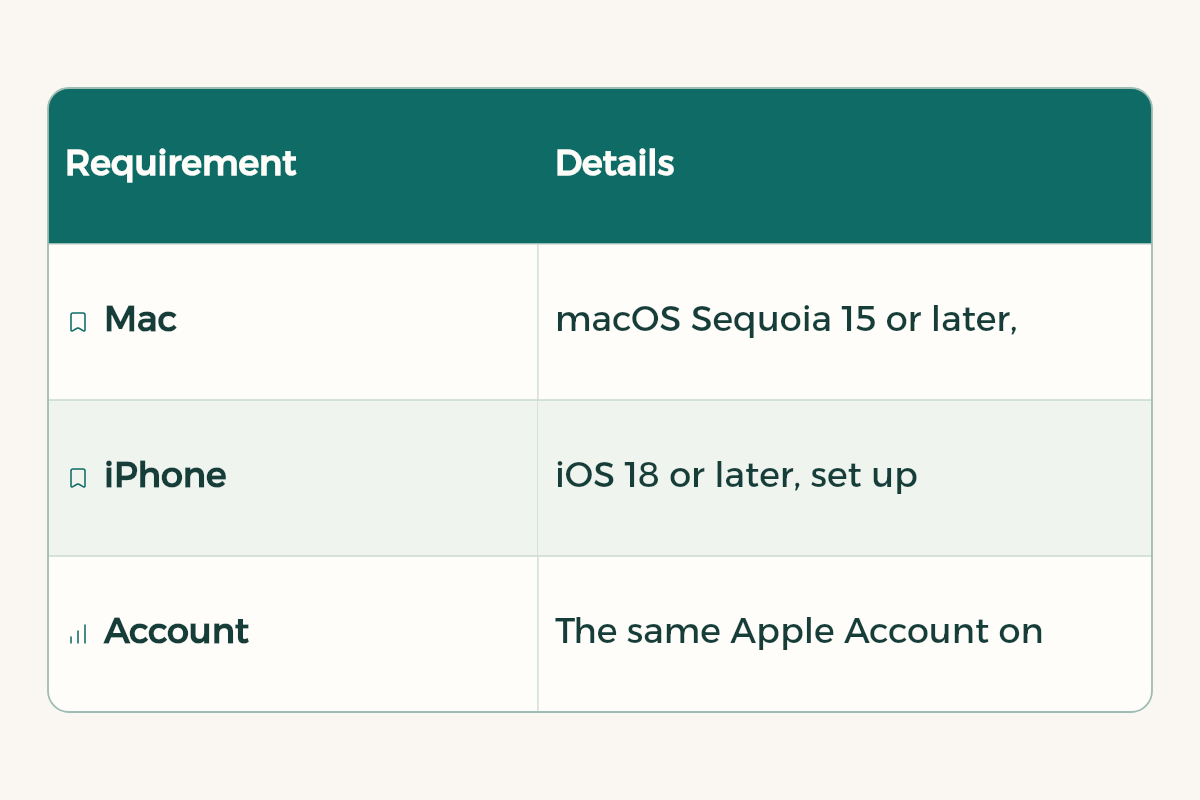
Open it from the iPhone Mirroring icon in the Dock. To avoid distraction while using it, turn on a Study Focus as in iPhone focus mode for studying.
Sidecar and Universal Control: iPad with Mac
- Sidecar: makes the iPad a second Mac display that extends or mirrors the desktop, or a drawing tablet with Apple Pencil in Mac apps. Great for design and engineering students: slides on one screen, work on the other.
- Universal Control: one keyboard and mouse control both Mac and iPad, with the pointer moving between them. Type on the Mac and slide the mouse over to the iPad to turn a textbook page.
If you do not have an iPad yet and are thinking of buying one, the comparison is in which iPad to buy for university.
Instant Hotspot: phone internet for the Mac
If campus Wi-Fi drops while you submit an assignment, the Mac can connect to your iPhone Personal Hotspot without typing a password. Availability depends on your carrier plan, so watch your data use. To compare student plans, see student mobile plans.
Which feature for which moment?
| Moment | Feature |
|---|---|
| You want text from your phone in your paper | Universal Clipboard |
| You started an article on the phone and want to finish on the Mac | Handoff |
| A printed page you need in a document | Continuity Camera |
| Send a file to a nearby classmate | AirDrop |
| Reply to a message without picking up the phone | iPhone Mirroring |
| You need a second screen | Sidecar |
| Wi-Fi dropped | Instant Hotspot |
A full study day with Continuity
To picture the payoff, here is an ordinary student day using these features without thinking about them:
- Morning on the bus: you read a course article in Safari on your phone and copy two paragraphs into a note.
- In the lecture: the instructor writes an equation on the board; you photograph it and copy the text with Live Text.
- In the library: you open the Mac, the article appears in Handoff at the same spot, and you paste the copied paragraphs into your paper with Universal Clipboard.
- Assignment time: you need a page from the printed textbook and scan it with iPhone from inside the Mac document using Continuity Camera.
- Before submission: Wi-Fi drops, the Mac joins your phone hotspot and you submit on time.
- At night: you AirDrop the slides to a teammate and reply to the class group from the Mac with iPhone Mirroring while the phone stays out of reach.
Not one step needs a cable or emailing a file to yourself, and that is exactly what saves time and focus.
For faster work on the Mac, shortcuts like Command-Tab and more are in keyboard shortcuts, with the full set of Mac tips in MacBook tips for students. All of these features rely on iCloud, so keep your space in order as in iCloud storage for students.
Student prices on Apple devices
Continuity shows its value once you have more than one Apple device. Apple offers education pricing for students on Mac and iPad. Current savings:
| Product | Student price | Regular price | You save |
|---|---|---|---|
| Apple iPad Air | From SAR 3,299 | 6% | |
| Apple MacBook Air | From SAR 5,499 | 8% | |
| Apple iPad Pro | From SAR 5,099 | 9% | |
| Apple MacBook Pro | From SAR 8,999 | 5% | |
| Apple iMac | From SAR 6,799 | 3% | |
| Apple iPad mini | From SAR 2,599 | 7% | |
| Apple iPad | From SAR 1,999 | 5% | |
| Apple Mac mini | From SAR 3,799 | 12% |
Prices and deals in this article come straight from the tiswa catalogue, so they stay current.