By the tiswa editorial team, from the official sources listed at the end of this guide. How we write our guides
LinkedIn verification confirms that a piece of information on your profile is genuine. It can cover your identity, your workplace or your educational institution. According to the LinkedIn Help Center it is free and optional, and you can remove it from your settings at any time. This guide explains the three types, what each one needs, what to do when an option is not available to you, and why any offer to sell verification should be ignored.
The three verification types
- Identity verification checks an official document through a verification provider. The method depends on your country and on the document you hold.
- Workplace verification uses a work email from a company that offers this option. Only selected companies are supported, and the email address is not shown on your profile.
- Educational institution verification links your profile to your school or university. The exact steps are on the Help Center page, because they can change, so read them before you start.
Do students need verification?
You do not need verification to apply for a co-op or a summer internship. A well-written profile, real projects and a clear CV do most of the work. Educational verification, if your university is supported, adds a simple sign that you study there. Treat it as a bonus rather than a requirement, and do not let a missing badge stop you from applying. For the application timeline, read the co-op training guide.
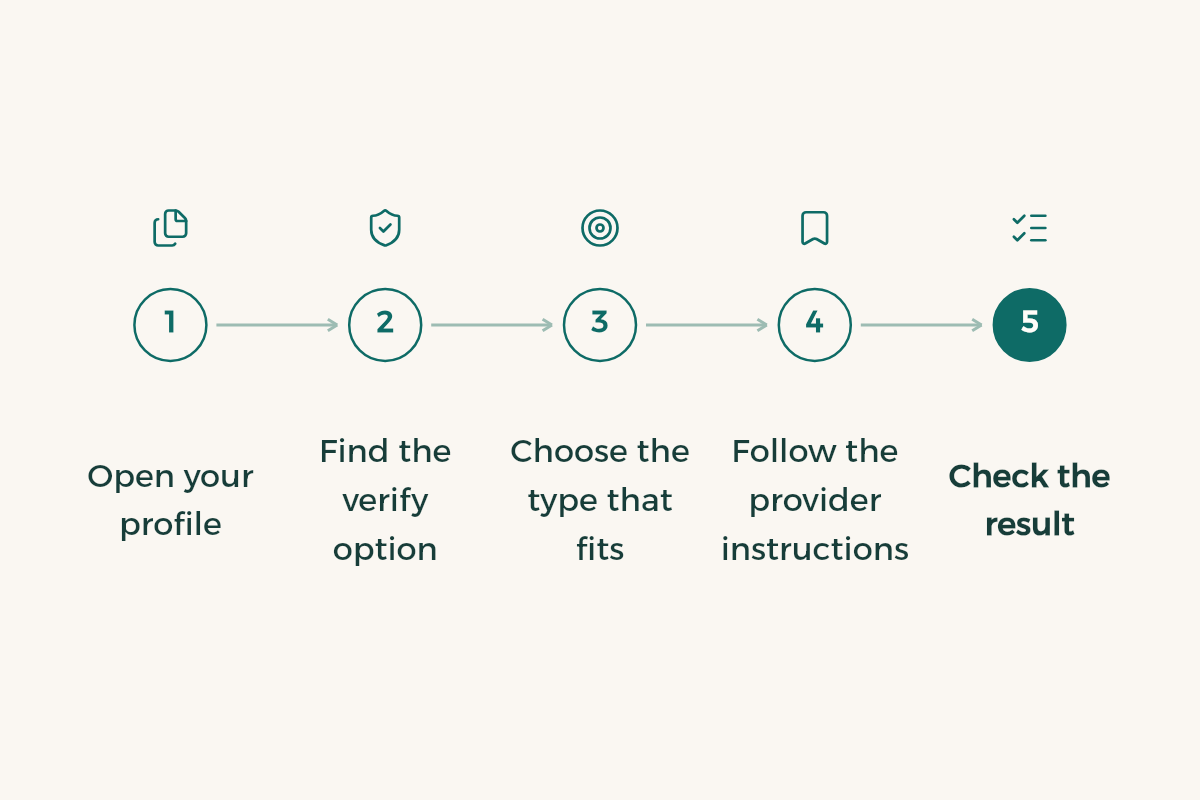
Steps to start
- Open your profile
From your account menu, choose View Profile.
- Find the verify option
Look under More or in the About this profile section, then choose Verify. Labels vary by app and device, so search for the word verify if it is not in the first menu you open.
- Choose the type that fits
Pick identity, workplace or educational institution, depending on what is actually available to you.
- Follow the provider instructions
You may be asked to use a specific app, scan a document or enter a work email. Follow only the steps that appear on screen.
- Check the result
When verification finishes, check that the badge appears and that your name matches the document you used.
Identity checks in detail
The Help Center names two providers. CLEAR accepts a government ID from the United States, Canada or Mexico, asks for a phone number, is available in the mobile app only, and requires the name on the ID to match your profile name. Persona uses an NFC-enabled passport and is available in a list of countries published on the Help Center. Check that list before you start. If your country is not listed, do not try other documents to get around the rule. Use the workplace or educational option instead, if either one applies to you.
If the option is not available
Many verification options depend on country, document type, or whether your employer or school is supported. If you cannot find an option, do not look for alternatives on unknown websites. Instead, make your profile stronger with specific projects, clear dates and honest descriptions, which build credibility more than a badge alone. The profile review guide includes a checklist you can apply in half an hour.
Beware of paid verification offers
Websites and accounts sometimes promise to verify your profile for a fee, or ask for your password and a login code. Do not give your password to anyone, and do not pay any provider that offers to verify your LinkedIn account. Verification is done through the official paths described on the Help Center, and you start it yourself. If someone asks for money or login details, stop, and report the account through the Help Center.
After verification
Once your profile is verified, keep your name, headline and workplace consistent with your CV. You can remove verification from settings at any time if you change your mind. If you plan to limit who sees your profile, read the private mode guide first, because visibility settings and verification are separate decisions.
Mistakes to avoid
- Starting verification with a name that does not match your profile or your document.
- Using a work email that is not yours, or a company email you no longer have access to.
- Believing that a badge replaces a strong CV, real projects or interview preparation.
- Paying a stranger to verify you, or sharing a login code with anyone.
- Worrying that your work email will be shown to others. According to the Help Center, the address is not shown on your profile.
Decide whether verification is worth your time
Before you start, ask one plain question: does this verification help an opportunity I already know about? If yes, start with the option that is easiest for you. If not, spend the time on your CV and projects instead. Verification is not a race, and most students need a clear profile long before they need a badge.
What to say if someone asks about it
If a recruiter asks about the verification badge, answer plainly. It confirms an organisation or a document linked to you, and you can then explain your projects and skills in detail. Do not oversell the badge, because it does not replace an explanation or a real example, and a good example from your coursework will carry more weight than any badge in a short conversation.