By the tiswa editorial team, from the official sources listed at the end of this guide. How we write our guides
Blackboard Grade Center is where grades are recorded and totals are calculated, and many lecturers at Saudi universities use it to mark exams and assignments. The steps below cover grading exams and calculating a final grade by percentage, drawn from the Anthology and Blackboard help documentation, with the mistakes that cost lecturers most.
Before you start: know which course view you use
Blackboard has two course views, and some steps differ between them. Anthology documentation for the Original course view describes tools such as weighted totals and rubrics in a particular way, while Ultra has a different arrangement of some screens. Confirm which view your course uses before following any step, and if you are unsure, ask your university's academic support team.
What types of grade column are there?
Every graded activity in a course has a column in Grade Center. A column can be linked to an item such as a test or assignment, or it can be a manual column where you type grades yourself, for example for class participation. You can also create total columns: a points total adds the points possible for the selected columns, and a weighted total calculates percentages.
| Column type | How it is calculated | When to use it |
|---|---|---|
| Points total | Adds the points possible for each selected column, then displays the result in the format you choose | When every task is worth points and no weighting is needed |
| Weighted total | Gives each column or category a percentage of the final grade | When final exams should count more than participation, for example |
| Manual column | You enter the grade yourself, and you can link a rubric to it | Class participation or marking presentations |

How do you calculate a weighted total step by step?
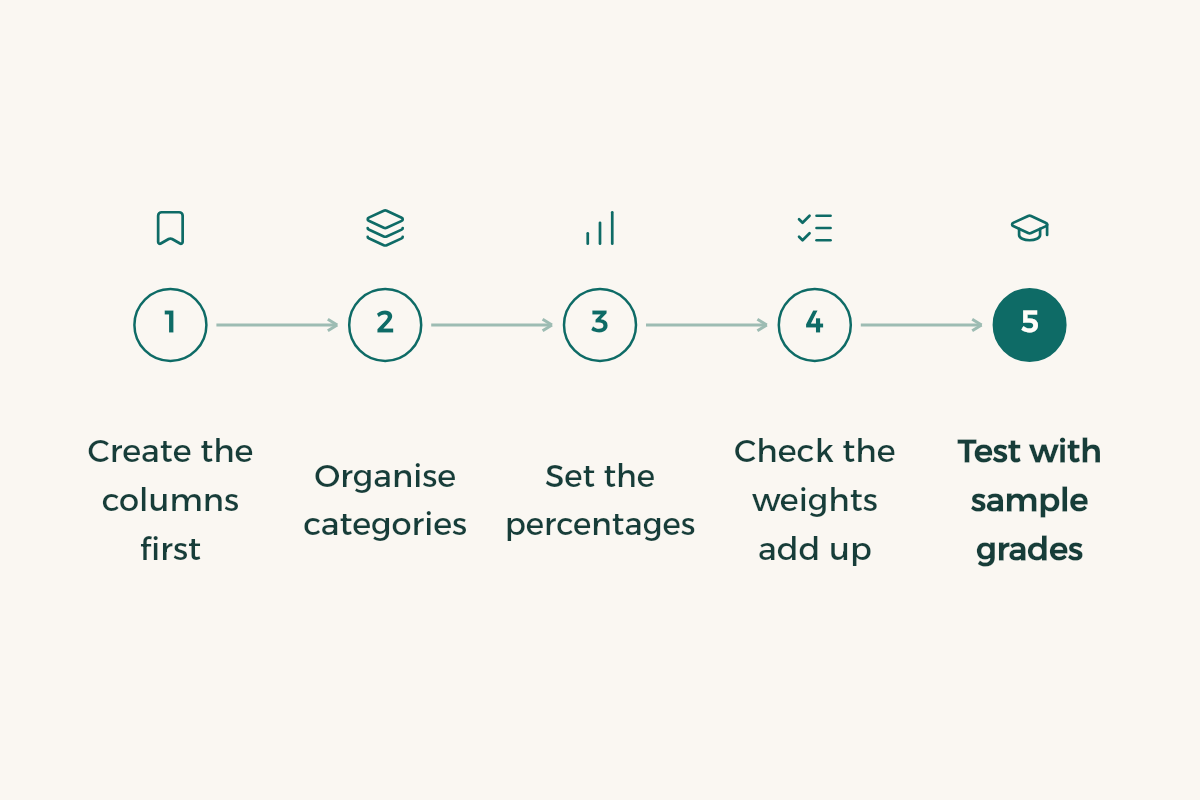
- Create the columns first
Add a column for each test and assignment before you mark anything, and give each one a clear name that shows what it is.
- Organise categories
Group similar columns into categories, such as tests, assignments and participation. This makes it easier to give each category its weight.
- Set the percentages
Assign each category its share, then decide whether columns inside a category are weighted by their points or equally.
- Check the weights add up
The weights should total 100%. Anthology documentation says the calculation automatically balances all unlocked items to reach 100%, which may not be what you intended.1
- Test with sample grades
Enter sample grades for a test student and confirm that the final total matches the calculation you expect by hand.
How do you apply a rubric to grades?
A rubric can be linked to an assignment or to a manual column, so that performance on each criterion feeds the grade directly. Blackboard documentation says that the criteria weights of a percentage-based rubric must total 100%, and that at least one level of achievement must be worth 100%.2 Check both conditions before you link the rubric, because an error here produces unexpected grades. To learn how to write the criteria themselves, read the rubric guide.
What goes wrong with deleted columns and extra credit?
- Deleting a source column from a weighted total removes the percentage you assigned to it, and the system rebalances the unlocked items, so the result will not match your original percentages.
- Before you combine an extra credit column with a weighted total, test the calculation on a sample student, because mixing the two methods can change the result.
- Changing the points on a column after grades are published affects every total linked to it, so review the affected students before you change anything.
- Check hidden columns before you release grades, and make sure they are in the total or out of it according to your intent.
You can avoid most of these errors by documenting the setup. Keep a copy of the calculation formula and note any change to the columns in a course memo. This also helps when a student asks how their grade was calculated, or when the department reviews results.
What do you tell a student who asks about a grade?
Most questions are about the final calculation, and that is where documentation earns its keep. Open the student in Grade Center, compare each column with its assigned percentage, and explain the result in one clear sentence with the numbers. If you find a setup error, correct it for everyone and tell the students affected, and do not change one student's grade by hand without recording the reason. Every grade should be explainable from its source.
Keep the columns that count in the total apart from those that only display information, such as attendance notes or unassessed activity reports. That way no column you did not mean to count enters the final percentage, and the formula on paper stays the only reference for every grade in the course.
How do online exams relate to academic integrity?
Grade Center only records grades, but an online exam needs design that reduces cheating. State the exam rules before it begins, and use a variety of question types. The academic integrity guide covers the policy and exam design side.
What should you audit before students see the grades?
One error in a calculated column can change the marks of a whole section. Before you make grades visible to students, go through this list in order:
- Check that the weights in the weighted total add up to 100%.
- Open three random students, calculate their grade by hand, and compare it with the calculated column.
- Look for empty cells and decide whether each is a zero or an accepted excuse; do not leave them blank.
- Review hidden columns and make sure they are not counted in the total unless you meant them to be.
- Export the Grade Center to a spreadsheet and keep a dated copy before any bulk change.
The saved copy rescues you if you delete a column by mistake or change a calculation setting. If you are new to the platform, start with the Blackboard guide to learn the interface before the Grade Center. If an error keeps happening with one type of column, write it in a note kept with the course file, so it does not happen again when a colleague takes over the course.
What should you check before you release grades?
Review the highest and lowest scores, and make sure students who did not submit are not showing a zero by mistake. If your university requires departmental review before release, do it now. Keep an export of the grades with each column and its weight, so you have a reference if a student asks how a grade was reached.