By the tiswa editorial team, from the official sources listed at the end of this guide. How we write our guides
Citations in Word, done the automatic way, fix a problem every student knows: a hand-typed reference list with a missing source, a duplicate, and formatting that changes from line to line. Word's citation tools store each source's details once, place the citation in your text, and build the reference list at the end in the same style. This guide follows the steps Microsoft describes.
Before you start: know your citation style
Every department asks for a specific citation style, and APA is one of the best known. Ask your instructor or check your department's guide before you add the first source, because the style decides how in-text citations and the reference list look. If you need APA, the detailed rules, such as author and year order, are in APA citation. Here we focus on making Word do the work.
Step one: choose a style and add your first source
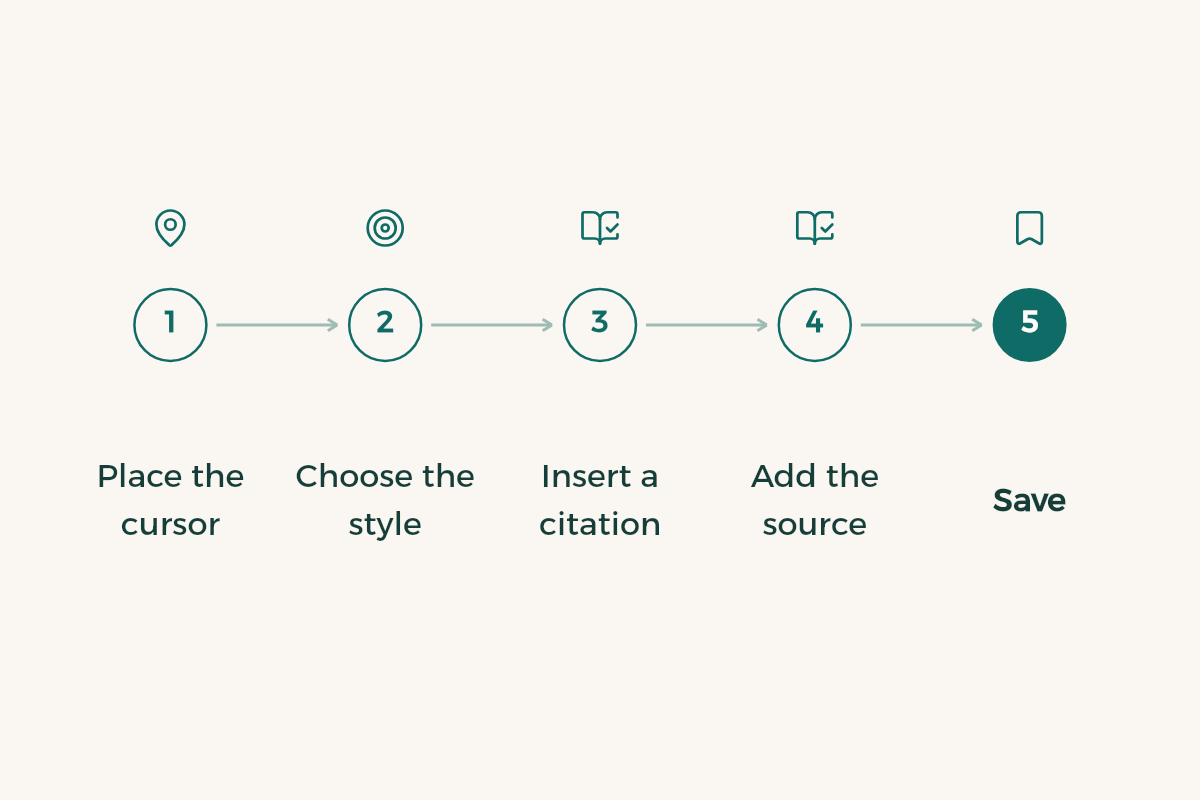
- Place the cursor
Click at the end of the sentence or paragraph you want to cite.
- Choose the style
Go to the References tab, then Style, and pick the style your department wants from the list.
- Insert a citation
Select Insert Citation.
- Add the source
Choose Add New Source and fill in the details: source type (book, article, website), author, title, year and the other fields shown.
- Save
Select OK. The citation appears in your text in your chosen style, and Word stores the source for later.
Step two: cite the same source again
You do not need to type the source details again. Following Microsoft's steps:
- Place the cursor
At the end of the text you want to cite.
- Pick the source
Go to References, Insert Citation, and choose the source from the list.
- Add a page number
If you quote directly or take an idea from a specific page, select Citation Options, then Edit Citation, and add the page number.
This keeps the source formatted the same way every time, and it appears only once in the reference list however often you cite it.
Step three: insert the bibliography
- Go to the end
Place the cursor where the reference list should go, usually on its own page after the conclusion.
- Insert it
Go to References, Bibliography, and choose a format.
- Review it
Check that every source you cited is there and that the fields are complete. If a source is wrong, edit the source itself, not the text of the list.
Step four: update after every new source
If you cite a new source after inserting the list, Microsoft says to click anywhere in the bibliography and select Update Citations and Bibliography. Word adds the new source and reorders the list to match the style. Make this part of your pre-submission routine, like updating the table of contents.
Footnotes and endnotes
Some departments, especially in Sharia, law and history, want references in a note at the bottom of the page instead of in the text. Word numbers notes automatically too:
- Place the cursor
Where the note number should appear in your text.
- Insert the note
Go to References, Insert Footnote. Word adds the number in the text and the matching note at the bottom of the page.
- Type the reference
Write the source details in the note as your department requires.
- For endnotes
To put notes at the end of the document instead, choose Insert Endnote the same way.
The benefit of automatic notes is that adding one in the middle of the paper renumbers everything after it, so you never fix numbers by hand.
Arabic and English sources in one paper
Many papers at Saudi universities mix Arabic and English sources. Word's citation tool stores what you type in each field as it is, so enter Arabic sources in Arabic and English sources in English. How the list is ordered, and whether Arabic and foreign sources are split, is up to your department's guide, and some ask for two separate lists. If yours does, review the generated list carefully and adjust it to the guide before you submit.
A workflow while you write
The best time to cite a source is when you use it, not after the paper is done. Leave it to the end and you will be hunting for a page you read two weeks ago. A simple routine many students follow:
- Keep a notes file
Whenever you read a useful source, note its full details and the page you used, in a notes file or an app such as Notion.
- Cite as you write
When a paragraph relies on a source, insert the citation right away with Insert Citation.
- Insert the list early
Put the bibliography at the end of the file from the start and update it now and then to check it looks right.
- Review before submitting
Update the list, then match every in-text citation to an entry, and check page numbers on direct quotes.
If you find a reference in another paper and want its details in Word's fields fast, ask an AI tool to split it up, then check every field against the original yourself:
Here is a reference copied from a reference list: [paste the reference]
Split it into separate fields: source type, author, title, year, publisher or journal, volume and issue, pages, link if any.
Do not add anything that is not in the text, and write missing for any empty field.
Common citation mistakes
- Typing a list by hand and then adding sources with the tool: you end up with two overlapping lists. Pick one method from the start.
- Editing the list text directly: your edit disappears on the next update. Edit the source itself.
- Switching style at the last minute: you can change it under References, Style, but review the list afterwards because every citation changes.
- Quoting directly without a page number: use Edit Citation to add it.
- Trusting sources an AI tool suggested without checking: AI can help you search, but make sure every source is real and in front of you before you cite it.
Where to go next
After citations you will usually need an automatic table of contents, see table of contents in Word. For spacing and margins read format a research paper in Word. If you are writing from scratch, start with how to write a research paper, and every writing guide is in the writing section.
- WPS Office: WPS Office offers WPS Office for free to university students in Saudi Arabia.
- Notion: Notion offers Notion Education plan for students to university students in Saudi Arabia for free.
- Google AI: Google AI offers Google AI Plus free for a year to university students in Saudi Arabia.