By the tiswa editorial team, from the official sources listed at the end of this guide. How we write our guides
You copy an analysis folder to an external drive, reach the lab and discover that the computer reads the drive but cannot open the project. Connection, file-system access and compatible software are separate layers. Test them before a presentation or submission day, and keep a fallback that does not depend on the only copy travelling in your bag.
Are you allowed to move the research data?
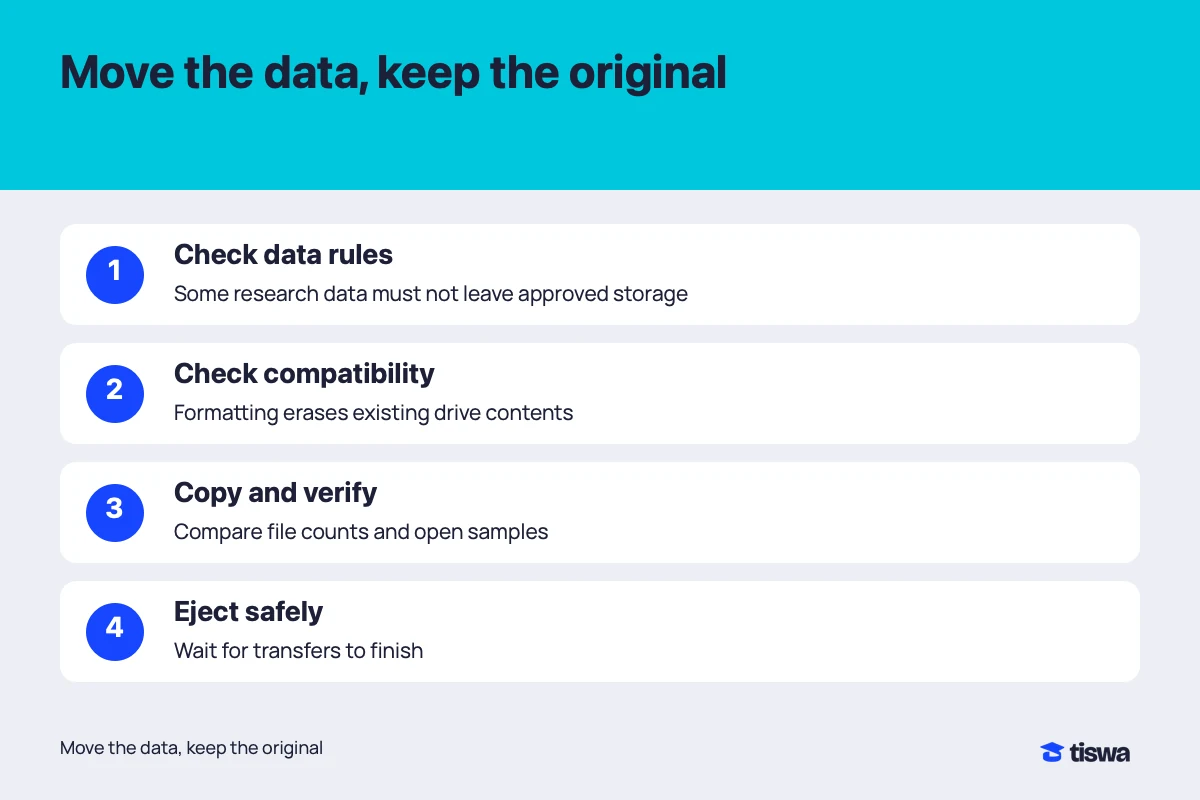
Review supervisor instructions, the data-management plan and university rules before copying participant records or sensitive material onto personal storage. A project may allow a final presentation without identifying information to move while requiring raw data to remain in approved storage. Having access to a file or being a project member does not automatically authorise every transfer.
If the rule is unclear, ask about the specific file types, drive, destination computer, people with access and retention period. That is more useful than a general question about USB storage. If transfer is prohibited, use the institutional route or request an appropriate export. Changing participant names alone does not establish that research data has been properly anonymised. For example, Tufts requires encryption when portable media must transport research data and directs researchers not to use those devices for data storage. This is a Tufts rule, not permission to transfer data at your institution.4
Identify the drive’s owner as well. Do not format a laboratory or teammate’s device without explicit permission, even if it appears empty on your computer. It may contain a partition your system does not display or files you do not recognise. Moving your work does not authorise reorganising someone else’s storage.
External hard drive format for Mac and PC: what should you check?
| Layer | Check | Possible failure |
|---|---|---|
| Connection | Suitable port, cable and adapter | The drive does not appear |
| File system | Reading and writing support | The computer reads the drive but cannot save to it |
| Document | Compatible application and version | The drive works but the project will not open |
| Dependencies | Linked data and images are present | The project opens with missing elements |
Apple describes Windows-compatible formats such as ExFAT in Disk Utility and explains that failure to write to an external drive can involve its format or other settings. Do not make reformatting the first response. Inspect the drive information and error, try a small file and check permissions before any operation that changes existing data.12
An application can require a different format from the one chosen for exchanging ordinary files. Apple recommends APFS for storage used with Final Cut Pro, Motion and Compressor on Mac. Distinguish a drive carrying a finished export from one hosting an application library that you edit directly. Read the requirements of the actual project software rather than extending one application’s recommendation to every task.3
How should you run a transfer trial?
- Choose representative samples
Include an editable source, readable export and file that depends on an attachment. A simple text file alone is a weak trial.
- Copy without deleting the original
Keep the source in place and use a clearly named destination folder so that you can identify what you added.
- Wait for completion
Read warnings about skipped files or duplicate names. Do not disconnect storage while it is writing.
- Open on the destination
Open the copy from the drive rather than a shortcut back to the original folder or cloud service.
- Check content and saving
Inspect a known page or result. If the task requires writing, save an experimental change to a separate copy.
Consider an illustrative report, spreadsheet and image folder. Opening the report alone is insufficient: photographs may link to locations on your own laptop, or the spreadsheet may depend on a file you omitted. Open the project on another machine without relying on those original paths where that can be done safely, and inspect the dependencies. Do not modify the authoritative source just to test a compatibility problem.
If the lab lacks the required application, keep a readable export for review, but do not substitute it for an editable source when the assessment asks for that source. Ask in advance about the software version and licence. A powerful computer in the room does not establish that every application is installed or available through your account.
What should you check after copying the full set?
Compare folder names, file counts and sizes as initial indicators, then open varied samples. Counts alone do not prove content integrity: an older revision can replace a newer one without changing the total. Inspect the last edit you remember, a page with a table or image and a known analysis result. Use any established project verification process rather than inventing a conflicting one.
Name the transfer copy by a meaningful milestone, such as supervisor review or submission. Avoid a chain of “final” names that no longer identifies the accepted version. Do not rename files that software links automatically until you understand those links. Keep a simple record of what moved and where the authoritative copy remains, especially when different members bring different drives to the lab.
When should you change the external drive format for Mac and Windows?
Formatting erases a drive’s existing contents; Apple’s instructions warn you to preserve required files first. Confirm the device name, capacity and whether you selected a drive or partition. If uncertain, ask the lab administrator. A prompt to initialise an unfamiliar device is not evidence that it is safe or authorised to erase.1
When the transfer is finished, use the operating system’s safe-ejection process and wait before disconnecting the cable. For encrypted or protected storage, rehearse authorised access on the destination beforehand. Keep recovery information separate according to institutional rules. An encrypted drive you cannot open does not solve the presentation problem, while an unprotected one may be unsuitable for the data.

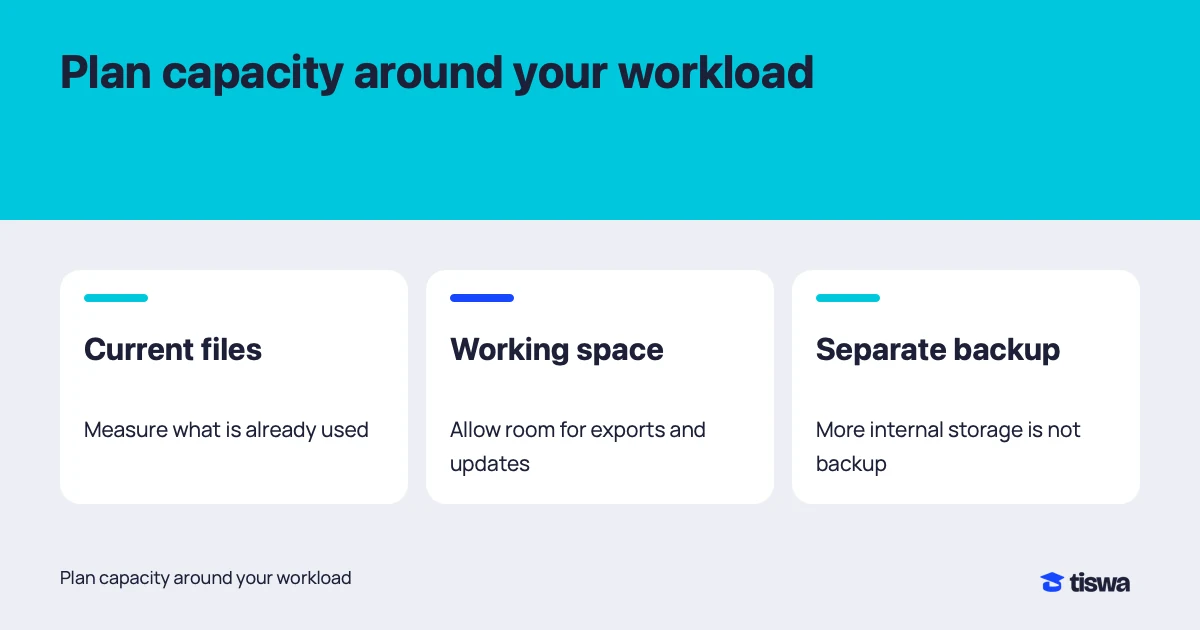
Before leaving, reopen the file you will actually present or analyse and confirm the locations of its source and backup. Avoid keeping every copy in the same bag if losing it would lose the whole project. Portable storage solves movement between computers; preserving the project requires a separate decision about where dependable copies live.