By the tiswa editorial team, from the official sources listed at the end of this guide. How we write our guides
Two students on the same course can have very different storage needs. One reads papers and writes reports; the other keeps recordings, datasets and design projects. Start with your files, the software required next term and the places where you work without reliable internet. A capacity recommendation based only on your subject leaves too much unexplained.
How much storage does a student need on a laptop?
In Windows, open Settings, System and Storage to review drive use and file categories. On a Mac, use System Settings, General and Storage. These views show used and available space and categories such as applications and documents. Record the values on your own machine and allow the calculation to finish if the categories are still updating.12
Avoid counting the same folder twice. If the project total already includes its photographs, adding the photograph folder separately inflates the estimate. Conversely, application libraries, course downloads and recent desktop files can sit outside the main project folder. Make a list by storage location, then review it by task to find omissions and duplicates.
Check whether a listed cloud item is actually stored locally. A visible filename is not proof that its contents are ready without internet. If you need it on a journey or in a lab with limited connectivity, prepare it for offline use according to the service instructions and try opening it. Plan for the downloaded contents rather than the smaller placeholder you may see beforehand.
What belongs beside your existing files?
| Category | Estimate from | Common omission |
|---|---|---|
| System and applications | Current use and upcoming software requirements | Counting documents alone |
| Active projects | A representative project or course brief | Assuming the degree name predicts size |
| Exports and temporary work | Observed use during a real task | Measuring only the final output |
| Offline materials | Files you will actually download | Treating cloud storage as free local space |
| Archives | A decision about what stays on the laptop | Moving the only copy and then losing it |
Published application requirements are a starting point, not a complete allowance for every project. Software can install successfully and then need additional working space for a large task. Ask the instructor about expected file types and applications, and request a representative previous project size if that information is available to share. One teammate’s small file does not establish a ceiling for the entire term.
How do you calculate laptop storage capacity for coursework?
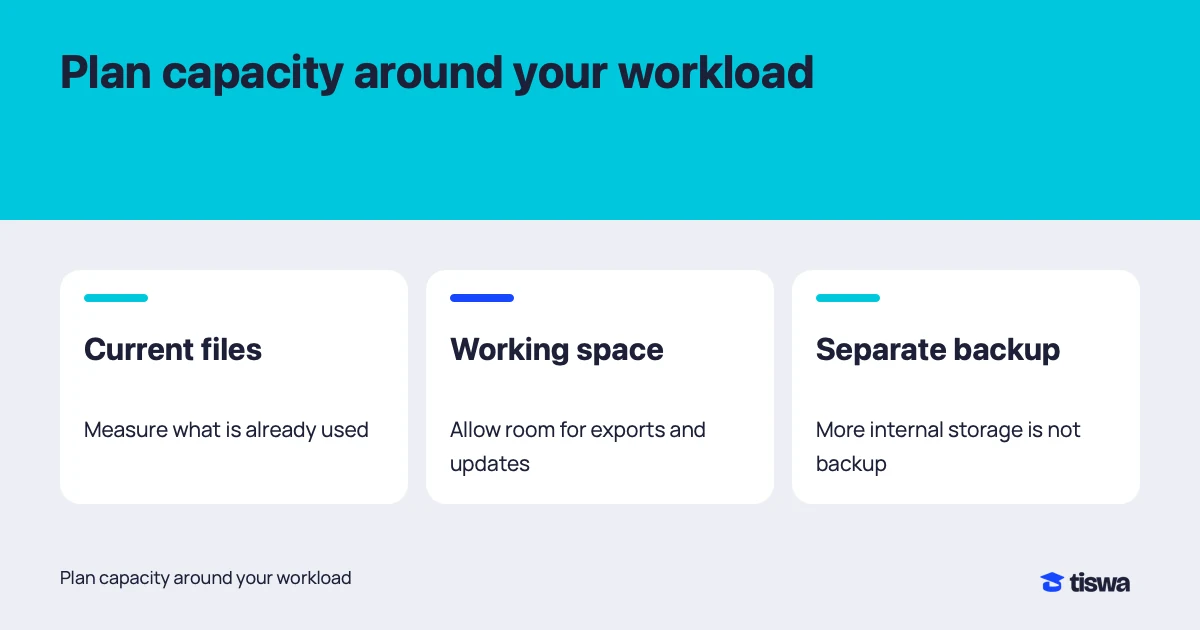
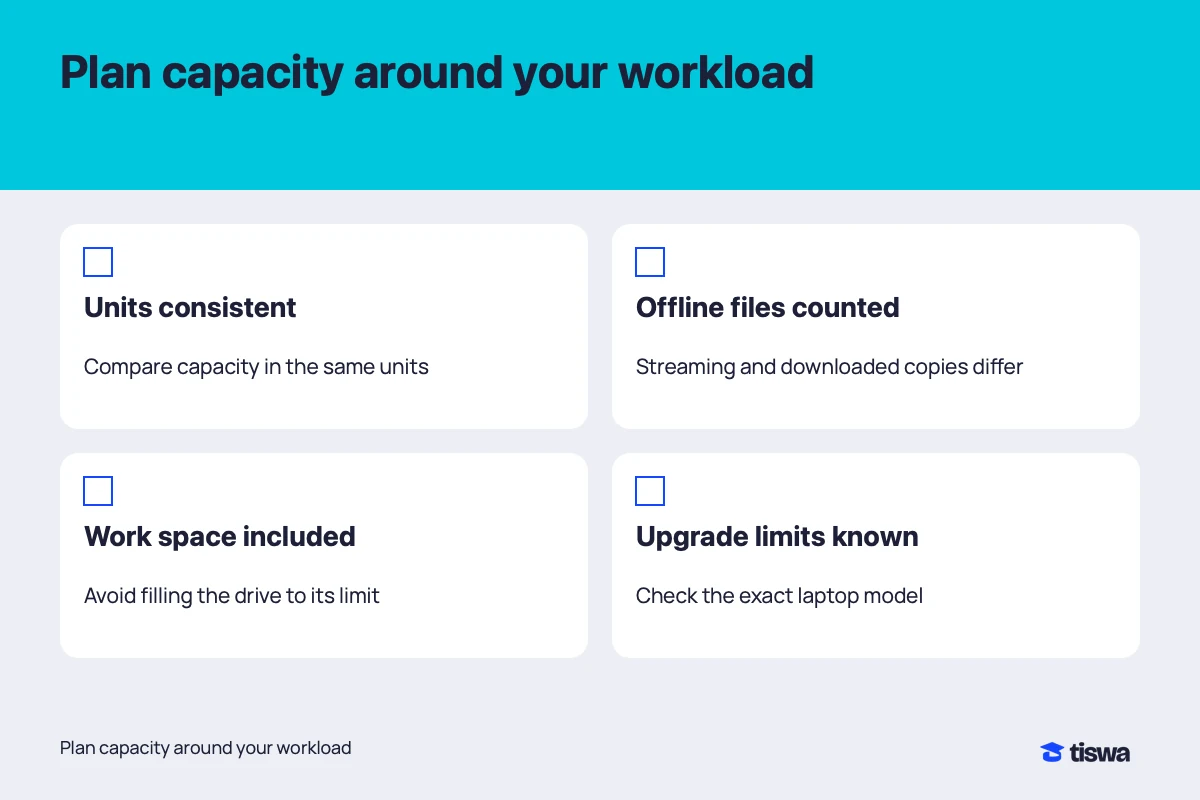
Use four entries: current use you need to retain, additional software, expected active projects and temporary working space. This organises the estimate; it is not a universal formula. The entries can overlap, so explain what each number includes. Compare like units and recognise that product capacity labels and operating-system displays can represent capacity differently.
- Record the starting point
Measure current use and identify old material that does not need to remain on this laptop.
- Add upcoming work
Review software, course requirements and project tasks instead of adding an unexplained general allowance.
- Estimate the peak
Include temporary copies, exports and downloads that may exist at the same time.
- Leave working room
Do not plan to fill every last part of the drive. Updates and project requirements can change.
- Check alternatives
Verify the exact model’s upgrade options and whether external or cloud storage fits the workflow.

As an arithmetic example only, suppose you retain 90 GB of files and applications, expect 30 GB of additions, plan 40 GB of active projects and observe a 25 GB temporary peak. The sum is 185 GB before any additional allowance for change. These figures are not a buying recommendation, and an advertised capacity equal to that sum is not automatically sufficient. The example makes the estimate explainable.
If two projects overlap, count the period when both remain active before the first is archived. An original dataset, a processed copy and an export may all be necessary simultaneously. Do not assume you can delete the original to make the numbers fit; you may need it to verify results or repeat the analysis. Clear assumptions matter more than a spreadsheet that appears precise to the final digit.
Can cloud storage replace local capacity?
Cloud storage can hold some archives and make files available across devices, but applications and offline work still need local room. Apple’s storage settings include iCloud options that affect which files remain fully local. Review the behaviour of the service you actually use rather than assuming every sync system works in the same way.2
Write down an offline scenario: can you open references, edit the report and export the submission? If not, identify the material that must be downloaded before leaving. Restricted research data must follow institutional storage and transfer rules. A convenient personal service is not automatically an authorised destination for that material.
When should you use cleanup tools?
Tools such as Storage Sense can manage some space. Microsoft explains that Storage Sense works on the system drive and that cloud-content behaviour depends on the relevant settings and account. Read the options before enabling them, especially anything affecting Downloads or cloud files. A cleanup suggestion is not permission to remove an unfamiliar research folder.3
Before removing an old project locally, open its archived editable file, export and linked asset. A folder with the correct name can still be incomplete. On a shared computer, consult the owner or IT administrator and leave other users’ work alone. Planning capacity reduces the need for rushed cleanup just before a submission.
Keep the worksheet adjustable. After the first substantial project, replace assumptions with observed sizes and revisit archiving or upgrade decisions. If the current machine handles the work with suitable room, a classmate’s larger drive is not a reason by itself to buy another one. Tie the decision to the work you expect to do.