By the tiswa editorial team, from the official sources listed at the end of this guide. How we write our guides
There are more Chrome extensions for students than anyone could count, but only a handful change your university life: one that saves sources and writes your bibliography, one that fixes your English, one that translates, one that saves important pages and one that keeps you off distracting sites. This guide trims the list and shows you how to use it on a real paper.
The six extensions
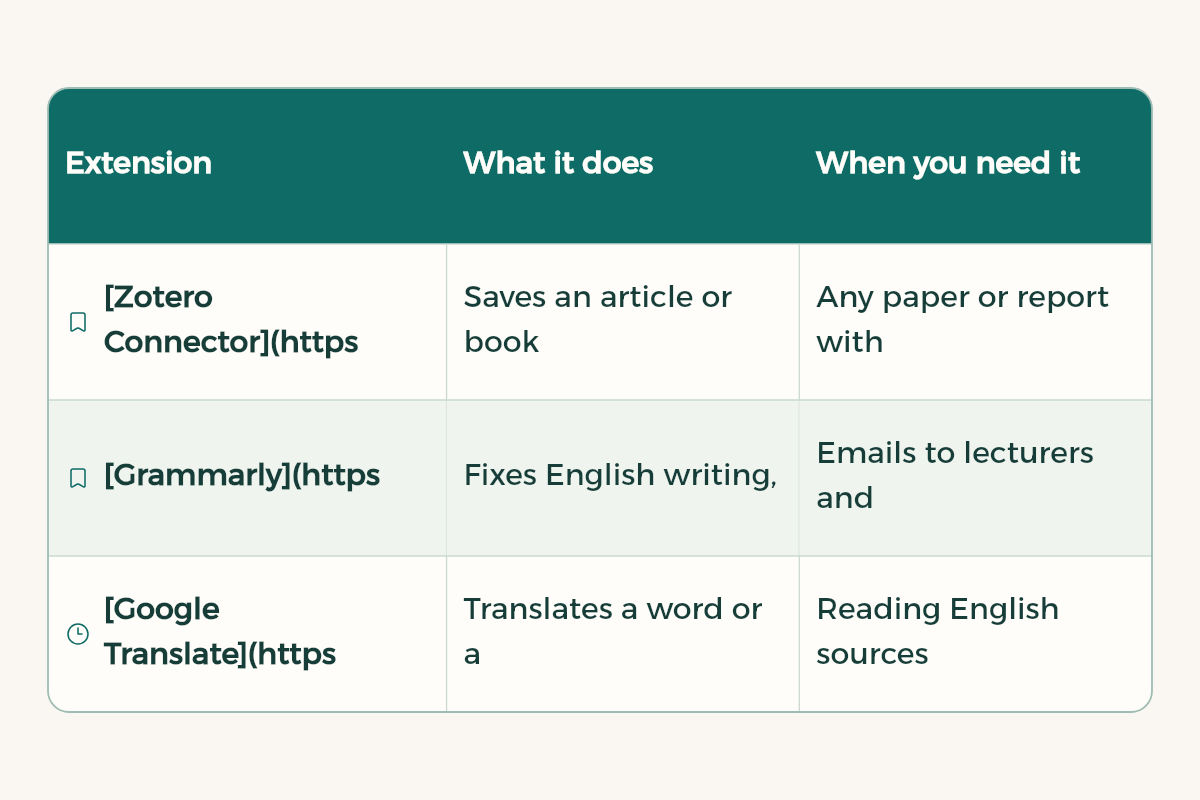
| Extension | What it does | When you need it |
|---|---|---|
| Zotero Connector | Saves an article or book from the browser into your Zotero library in one click | Any paper or report with references |
| Grammarly | Fixes English writing, detects tone and suggests clearer words | Emails to lecturers and English reports |
| Google Translate | Translates a word or a whole page while you read | Reading English sources |
| Notion Web Clipper | Saves any web page to Notion | Collecting sources and ideas for a project |
| Forest | A focus timer with a site allowlist | Study hours on a laptop |
| Chrome password manager | Stores passwords for your university portal and platforms | Every day |
Zotero: stop typing references by hand
Zotero is a free tool to collect, organise, annotate, cite and share research. It senses research as you browse, whether that is a journal article, a book or a news story. It creates citations and bibliographies inside Word, LibreOffice and Google Docs, supports over 9,000 citation styles such as APA and IEEE, and lets you share a library with classmates on a group project at no cost.
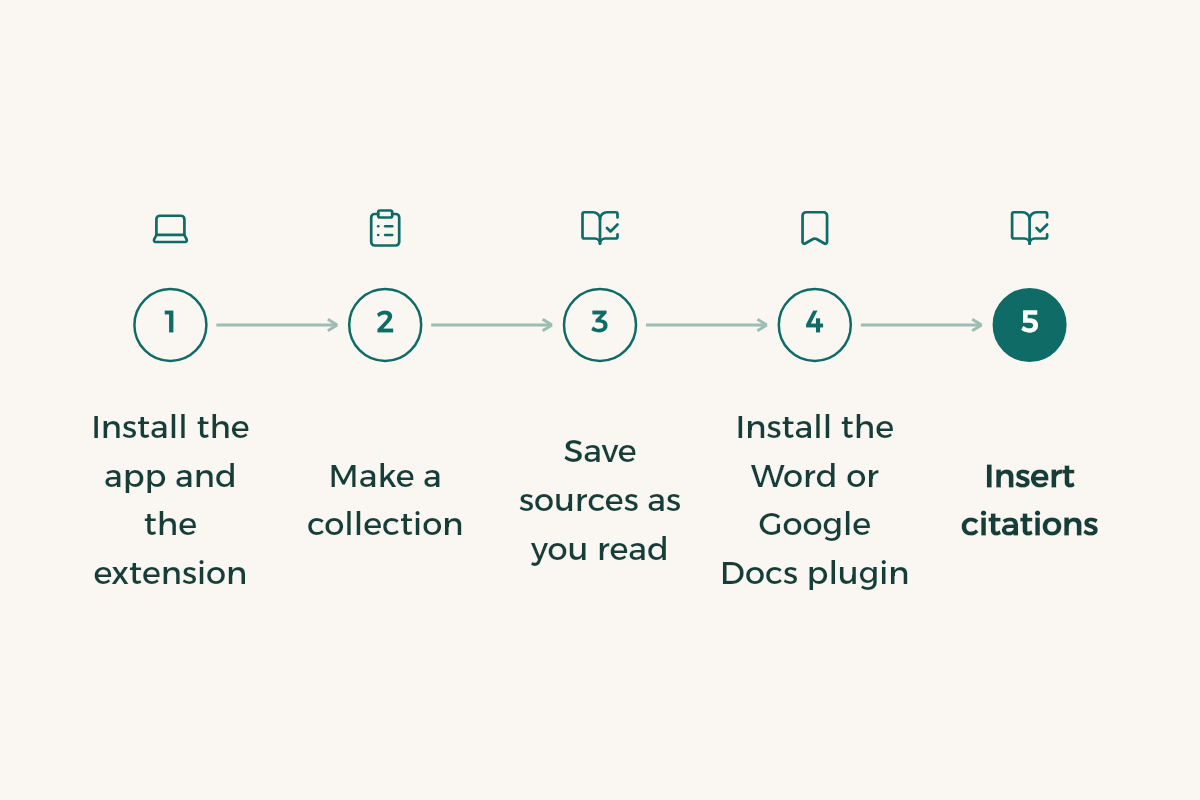
- Install the app and the extension
Download Zotero for your computer from its site, then install the Zotero Connector for Chrome from the connectors page.
- Make a collection
In Zotero, create a collection named after the paper or the course.
- Save sources as you read
When you open an article in your university digital library or Google Scholar, click the Zotero icon in the browser. The article, its details and the PDF when available are saved.
- Install the Word or Google Docs plugin
From Zotero settings, install the plugin for the editor you write in.
- Insert citations
As you write, click Add Citation and pick the source. Choose the citation style your lecturer asks for.
- Generate the bibliography
At the end, click Add Bibliography. The list is written in order and updates as you add sources.
Grammarly: writing in English
The Grammarly extension is free and works in Gmail, Google Docs and many other sites. It fixes commas and commonly confused words, cuts unnecessary words, suggests more precise vocabulary, and its tone detector shows how your writing comes across. It is very handy for emails to lecturers. Use it to correct, not to write the assignment for you, and check your university's policy on AI tools.
If English is your biggest hurdle, see learn English for university.
Notion Web Clipper: one page per project
When you gather ideas for a capstone or a presentation, save any page to Notion in one click and sort it in a database with a column for the source and a column for the idea you took from it. Notion has an education plan for students, and the current offer is on tiswa.
Chrome features that replace extensions
Before you look for an extension, check whether Chrome already does the job. Every extra extension slows the browser a little and takes permissions on your data:
- Tab groups: right-click any tab and add it to a new group. Make a group per course or paper and collapse it when you are done.
- Profiles: make one Chrome profile for your university account and another for your personal one, so emails and documents never mix.
- Built-in translation: Chrome offers to translate a page in another language, which is enough for most quick reading.
- Google Docs offline: turn on offline mode in Google Drive settings so you can keep writing if the campus internet drops.
- Bookmark folders: one folder per term with links to your portal, learning system and digital library.
A university paper from first source to last reference
Here is how the extensions above fit into one workflow. Start in your university digital library or Google Scholar, save every source with Zotero, translate hard paragraphs with Google Translate, keep ideas and quotes in Notion with the source link, write in Word or Google Docs and insert citations from Zotero, then check the language with Grammarly. Forest runs the whole time to keep you off other tabs.
Before you install any extension
- Install only from the Chrome Web Store or the tool's official site.
- Read the permissions it asks for. A translation extension should not need to read all your data on every site unless that is its job.
- Remove extensions you have not used for a month from Chrome's extensions page.
- Never type your university portal password into any extension other than the password manager.
Google explains installing and managing extensions in Chrome Web Store help.
Set up your browser for study
Extensions alone do not help if the browser is a mess of dozens of tabs. Try this at the start of term:
- A bookmark folder per course
Save the course page on your university platform, reference files and any site your professor asks for.
- A short bookmarks bar
Only university email, the learning platform and your reference manager, one click away.
- Close tabs at the end of each day
Save what you need tomorrow to the folder, and close the rest.
- A separate study account
If the computer is shared with family, use a separate account signed in with your university email.
Table: the task and the right kind of extension
| Task | Kind of extension | Watch out |
|---|---|---|
| Collecting references | Reference manager | Check Arabic source details by hand |
| Checking English writing | Grammar checker | Do not accept suggestions that change your meaning |
| Saving pages for a project | Web clipper | Save straight to the course page |
| Focus | Temporary site blocker | Few sites, clear times |
Review your extensions every term
- Remove any extension you have not used in a month; each one costs browser speed.
- Open the extensions page and review permissions: anything asking to "read all your data on all websites" must come from someone you trust.
- If an extension's name or developer changes suddenly, or it starts showing ads, remove it at once.
- Never install an extension from a link in a message or WhatsApp group; use the official Chrome Web Store only.
For phone apps that complement these extensions, see best apps for university students.
- Notion: Notion offers Notion Education plan for students to university students in Saudi Arabia for free.
- Canva: Canva offers Canva Pro free through Canva for Campus to university students in Saudi Arabia.
- WPS Office: WPS Office offers WPS Office for free to university students in Saudi Arabia.
- Google AI: Google AI offers Google AI Plus free for a year to university students in Saudi Arabia.
For phone apps, see the best apps for university students and study apps for students, and the full free list in free software for university students.