By the tiswa editorial team, from the official sources listed at the end of this guide. How we write our guides
A study schedule on iPhone does not need a paid app. The Calendar and Reminders apps already on your phone are enough for a color-coded lecture timetable, an alert before each class and an assignment list inside the same calendar. This guide builds the timetable from scratch with button names as Apple iPhone User Guide uses them, ready for a full term.
The plan: what we are building
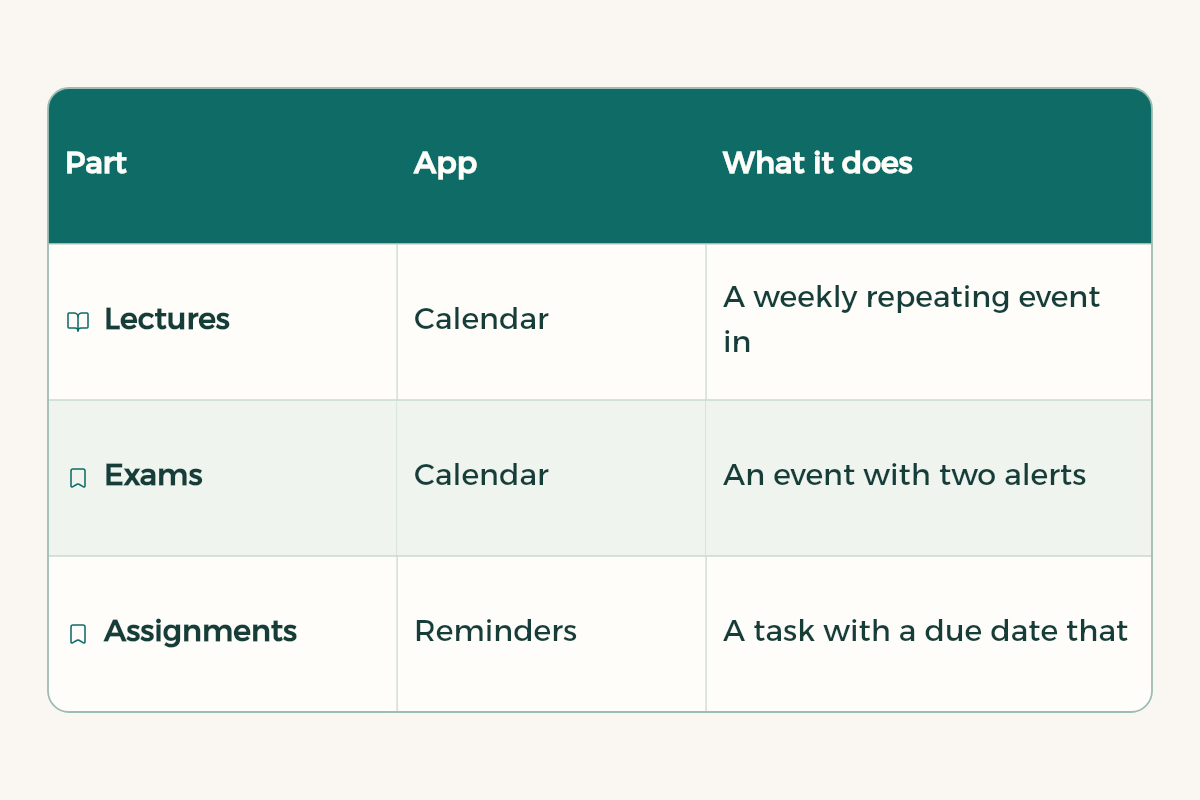
| Part | App | What it does |
|---|---|---|
| Lectures | Calendar | A weekly repeating event in the course color |
| Exams | Calendar | An event with two alerts: a week before and a day before |
| Assignments | Reminders | A task with a due date that shows in Calendar |
| Study sessions | Calendar | Time blocked exactly like a lecture |
| Project group | Shared iCloud calendar | Meeting times for everyone |
Step 1: a calendar per course, each in its own color
Instead of putting everything in one calendar, create one per course. You see today at a glance, and you can hide or show a course.
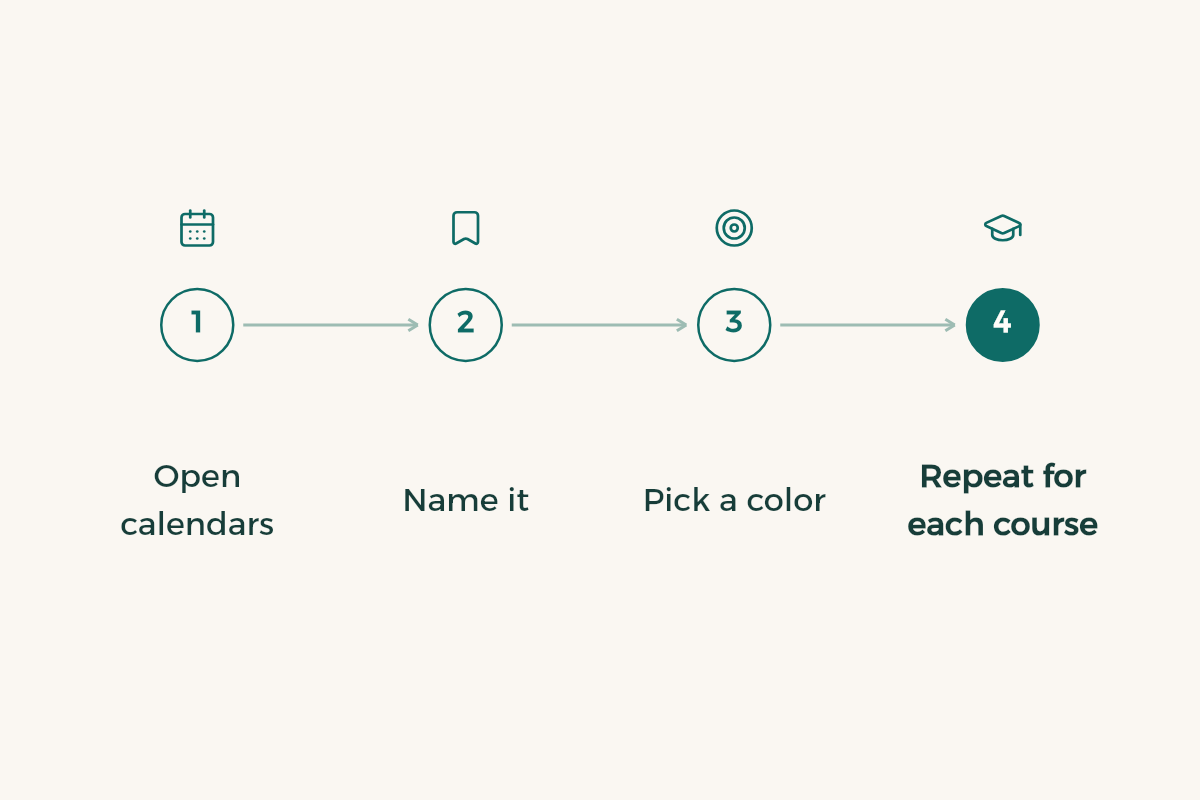
- Open calendars
In Calendar, tap the Calendars button at the bottom, then Add Calendar.
- Name it
Tap Add Calendar and enter the course code and short name.
- Pick a color
Choose a different color per course, and keep exams red in a separate calendar.
- Repeat for each course
Create a calendar for every course, plus one called "Study" for your own sessions.
Step 2: add lectures once for the whole term
- Add an event
In Day view tap the add button, then enter the course name and type, such as "Lecture" or "Lab".
- Location
Tap Location and enter the building and room. For a remote class, paste the meeting link in the same field.
- Time
Set the start and end, set Repeat to every week, and end the repeat on the last week of term.
- Calendar
Choose the course calendar so it takes its color.
- Attachment
Tap Add attachment and pick the course syllabus from iCloud Drive so it lives inside the event.
Do the same for each weekly lecture, and in about fifteen minutes your whole term is in place.
Step 3: alerts that reach you on time
Tap the event, then Edit, then Alert, and choose when to be reminded: at the time of the event, 5 minutes before, or another option. Per Apple, if you add the event address, Calendar uses Apple Maps with traffic conditions to tell you when it is time to leave. Useful if you drive or take the metro to campus.
- Lectures: one alert with enough time to walk between buildings.
- Exams: two alerts, one a week before so you start revising and one the day before.
- Office hours: a morning alert so you prepare your questions.
Step 4: assignments in Reminders, shown in Calendar
Assignments differ from lectures: they have a due date and need ticking off when done. Use Reminders for them and show them inside Calendar.
- Show reminders
In Calendar tap the Calendars button and select Scheduled Reminders.
- Add a reminder
Tap the add button, then Reminder, and enter the assignment name.
- Set the deadline
Tap Date, and turn on Time if it is due at a set hour, such as midnight on Blackboard.
- Tick it off
When you submit, tap the circle next to it; it dims and stays in your record.
Deleted reminders stay in Recently Deleted for 30 days before they are removed for good. For deadlines inside Blackboard itself, see Blackboard guide.
Step 5: a shared calendar for your study group
Working on a project or studying together? Create a shared iCloud calendar.
- Create the calendar
Create a new calendar named after the project.
- Add members
Tap the info button next to it, then Add Person, and enter each classmate email. They need an email address in Contacts.
- Permissions
Tap the person name and turn Allow Editing on or off.
- Read only for everyone
To share a schedule with the whole cohort as read only, turn on Public Calendar and tap Share Link.
If your university or a student club publishes a calendar as an .ics link, subscribe through Add Calendar, then Add Subscription Calendar, and paste the URL. It is read only and updates on its own.
Step 6: block study time like a lecture
The biggest mistake is a timetable with only lectures. Time you do not block disappears. In the "Study" calendar add fixed sessions, such as two hours after your last lecture each day, and name each session after the course you will study. Use a method like the Pomodoro technique inside each session.
Let study sessions turn on Focus automatically: in Settings > Focus create a study Focus and add a schedule matching your session times. Details in iPhone focus mode for studying.
Example: a study day in Calendar
Here is an ordinary day for a student with three lectures after following the steps above. The times are only an example; change them to match your timetable:
| Time | Event | Calendar | Alert |
|---|---|---|---|
| 8:00 | Course 101 lecture · Building 5 | Course 101 | Time to leave home |
| 10:00 | Course 102 lab | Course 102 | 10 minutes before |
| 12:00 | Break and prayer | None | None |
| 1:00 | Course 103 lecture | Course 103 | 10 minutes before |
| 3:00 | Study 101: chapter exercises | Study | Turns on Study Focus |
| 11:59 | Course 102 assignment due | Reminders | A day before |
A first week of term checklist
The first week is the best time to build the timetable, because everything is in front of you in the course syllabi. Follow this list:
- Download each course syllabus and save it in the course folder in iCloud Drive.
- Pull the quiz, midterm and deadline dates out of each syllabus and add them to Calendar and Reminders in one go.
- Add each instructor office hours as a repeating event in the course calendar.
- Review the timetable after drop and add and fix any room or time that changed.
- Share the project calendar with the group from the first meeting.
After that week you never need to open a syllabus to find an exam date; it is all on your phone and alerts you ahead of time.
A revision schedule before exams
Three weeks before finals, open Month view and add every exam. Then spread revision sessions backwards: the course whose exam comes first gets more sessions early on. The full revision plan is in final exams revision.
Mistakes that break the schedule
- Too many alerts on everything, so you start ignoring them all. Keep alerts for the first lecture of the day, exams and deadlines.
- Forgetting to end the repeat, so last term lectures show up during the break.
- Mixing personal plans and university in one calendar with one color.
- Not updating the timetable after drop and add, so you walk into the wrong room in week one.
If you want planning apps stronger than Calendar, the comparison is in time management apps. To open today schedule in one tap, see iPhone shortcuts for students.