By the tiswa editorial team, from the official sources listed at the end of this guide. How we write our guides
Screen zoom can make a paragraph readable while hiding a table column needed for the assignment. Dictation can speed up a draft while leaving technical names that require correction. Start with a real piece of coursework rather than an attractive settings screen. Choose a paragraph, table or exercise and identify what is difficult before changing the device.
What is the Windows accessibility settings shortcut?
In Windows, open Settings and Accessibility. The interface groups options relating to vision, hearing and interaction, including text size, magnification, pointers and keyboard use. Windows + U opens Accessibility settings. Labels and arrangement can vary with system language and version, so follow the wording on the device you use.13
On a Mac, open the Apple menu, System Settings and Accessibility. Apple describes options for vision, hearing, mobility and other needs, and notes that some features are unavailable in certain languages or regions. Find the feature on your own computer and read its requirements before building a study routine around it.2
For a university-owned laptop, ask the lab administrator which changes are allowed and whether your preferences persist after sign-out. A setting that works during one visit may reset before the next. Record the menu route in the interface language you use so that you can repeat the adjustment without guessing under assessment pressure.
How do you test reading rather than simply enlarge everything?
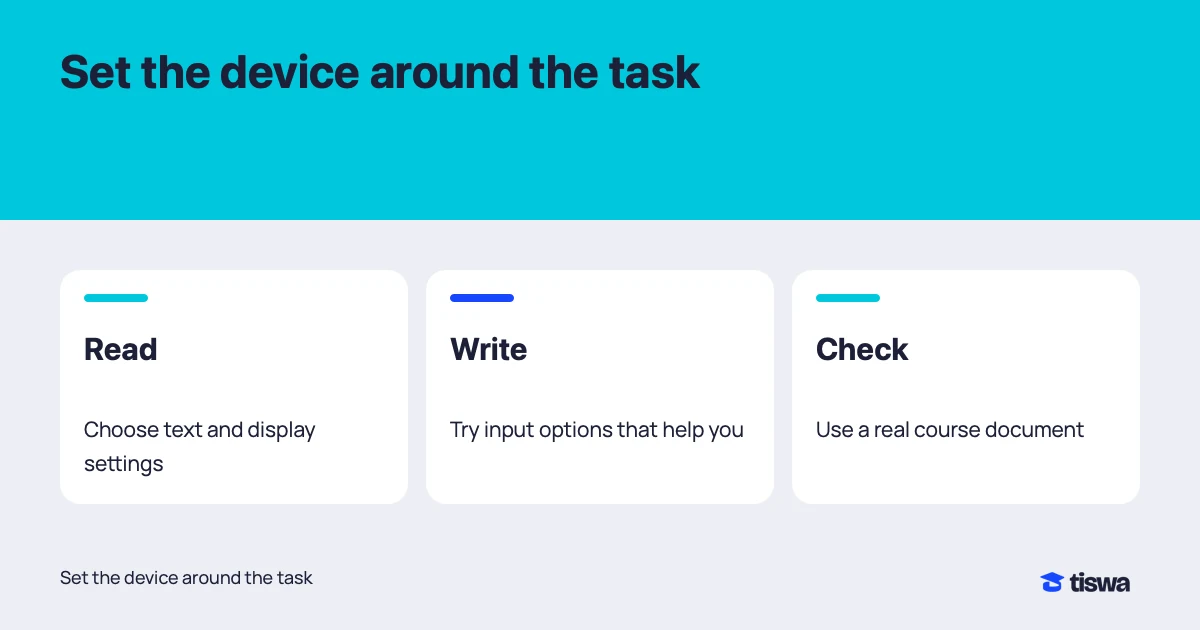
Choose a page with a paragraph, heading, number and table if possible. Try text size or application zoom, then compare screen magnification if needed. Check whether lines leave the window, whether Save and Back remain reachable and whether you can still connect table values with their column headings. Better text visibility is only one part of the reading task.
| Task | Try | Review if |
|---|---|---|
| Read a paragraph | Text size or page zoom | Lines disappear or require repeated horizontal scrolling |
| Track the insertion point | Cursor size or contrast | You lose your place while typing |
| Read a table | Magnification that preserves context | Column headings disappear while reading values |
| Listen to text | Appropriate screen reading or spoken text | Reading order or symbol pronunciation changes the meaning |
Test Arabic specifically when your coursework uses both languages. A page may contain English names, numbers and symbols within an Arabic sentence. A simple English paragraph is not an adequate test of that document. With spoken reading, compare the order of headings, paragraphs and footnotes against the page. A scanned or poorly structured file may need an accessible original from the instructor rather than another device setting.
How should you test typing and navigation?
Pick a complete short task, such as writing two paragraphs, inserting a reference and saving the file. If simultaneous key presses are difficult, review the relevant keyboard options. If pointer movement is the issue, try options for the mouse or input device you actually use. Microsoft documents these routes within interaction settings.3
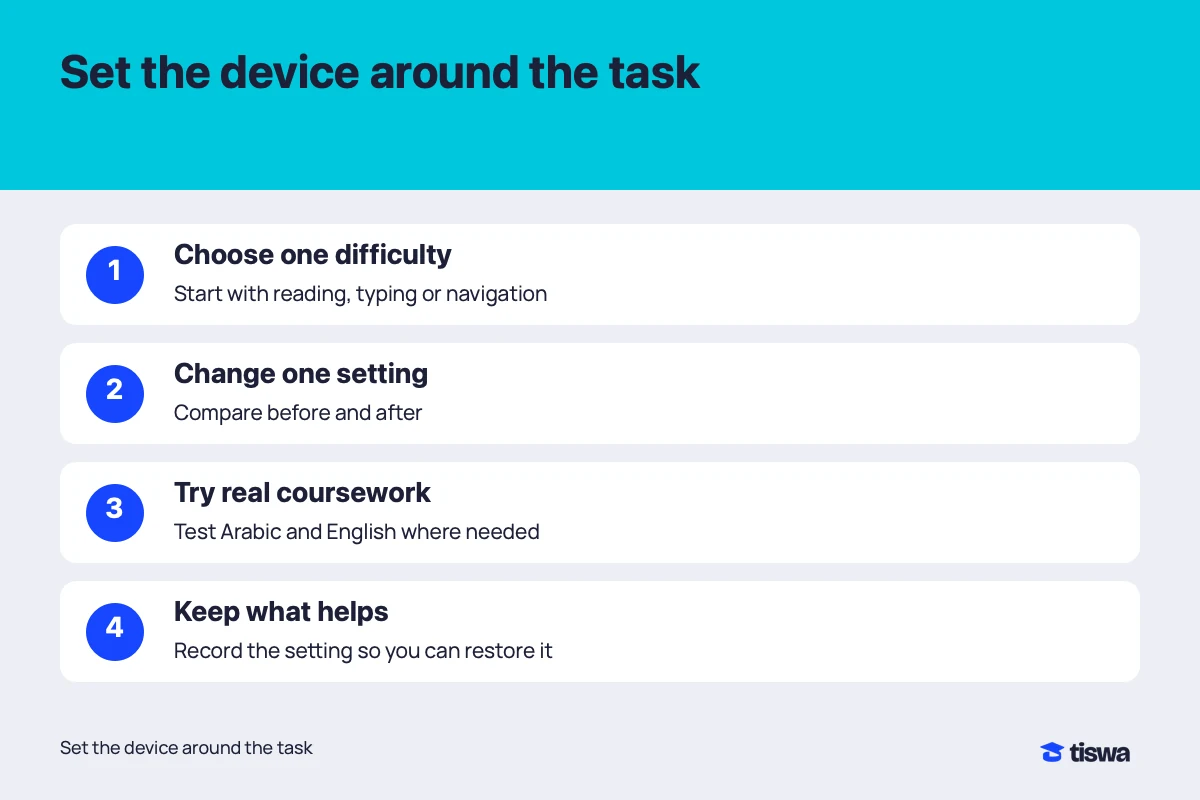
- Describe the obstacle
Use a practical description such as losing the cursor or struggling with a multi-key shortcut.
- Record the current setting
Keep its value or state so that you can restore it.
- Change one option
Choose the option related to the task and reopen the actual course file.
- Complete the task
Try typing, correcting and saving rather than entering a single line.
- Compare the result
Keep what helps and reconsider anything that causes a new difficulty. Repeat in the application you will really use.
For dictation, use a paragraph from your subject with a name, technical term and number. Check the output closely, especially drug names, equations or symbols where a small error matters. A successful everyday sentence does not establish accuracy for every specialist term. Check connection requirements, microphone permission and any processing outside the device for the particular feature; input tools do not all work locally.
What should you check when using audio?
The environment is part of the experiment. Reading a document aloud in a library can expose information you did not intend to share. Dictating in a crowded room may create more correction work than typing. Try suitable headphones, check the volume and confirm which application receives input before reading personal or research information into a microphone.
Do not assume captions or transcription support Arabic because a button is present. Apple documents hardware, language and regional limitations for particular features, including requirements for some live-caption functions. Read the description for the exact feature on your computer, and request an accessible alternative when the language or material is unsupported.4
Can you use the same setup in an exam?
Arrange what you need with the relevant university office before the assessment. A useful study setting may be unavailable on the room’s computer or inside restricted assessment software. Describe the task, what you tried and what you need to complete the assessment. You do not need to publish personal details in a group chat simply to ask teammates for a clearer working format.
Where an adjustment is permitted, rehearse in a comparable environment: the student account, required application and same type of file. Test saving and submission too. Solving the reading difficulty is insufficient if the submission control cannot be reached with your navigation method. Know which support contact to use if the setup fails on the day.
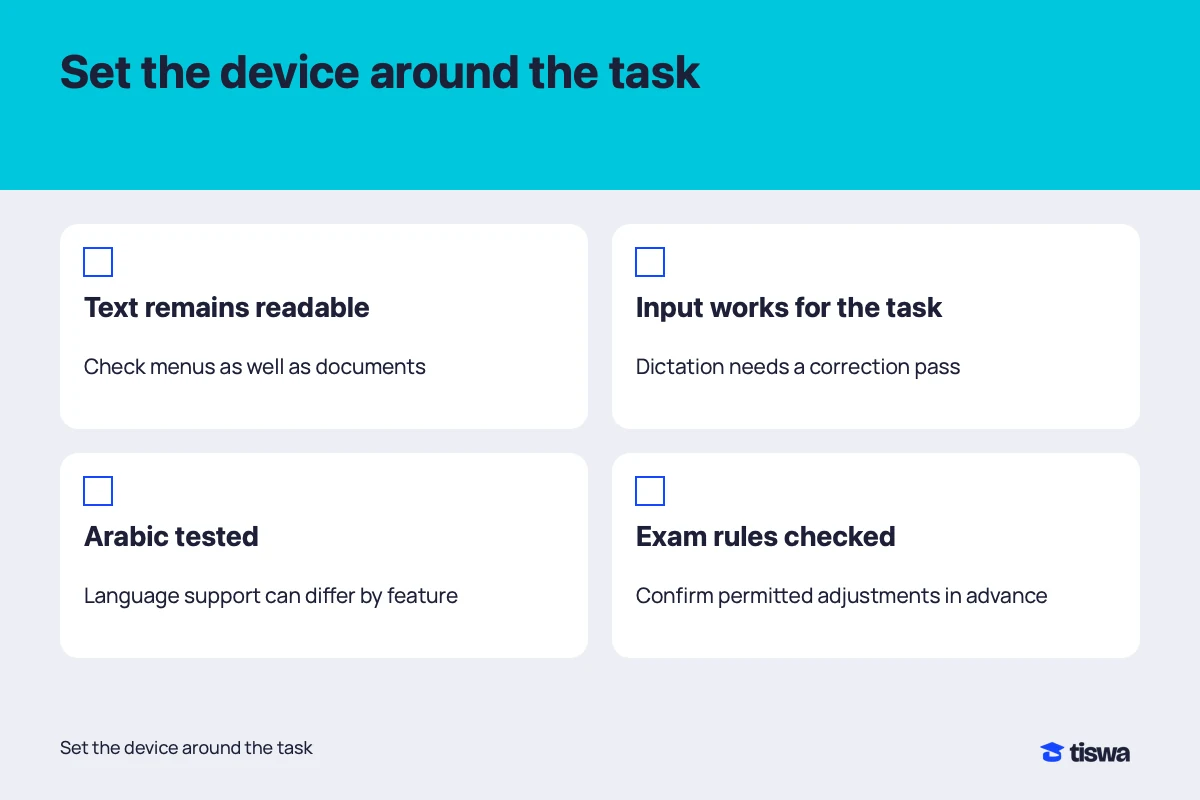
After the trial, write a short note naming the helpful setting, its menu location and the application you tested. Revisit it when the computer, system or task changes. You are building a way to complete coursework that you can repeat and adjust, rather than searching for one perfect configuration that covers every situation.