By the tiswa editorial team, from the official sources listed at the end of this guide. How we write our guides
Samsung Galaxy tips for students start with apps already on your phone: Samsung Notes to write on lecture slides, Voice Recorder to turn a lecture into text, Secure Folder for private files and Link to Windows to carry on at your laptop. This guide gathers the features that matter with menu names as Samsung official support pages describe them, plus the conditions for each one.
Tip 1: write on lecture slides in Samsung Notes
Instead of printing slides, import them as a PDF and write on them with the pen or your finger.
- Import the file
Open Samsung Notes, touch and hold the Create note button at the bottom and tap Import PDF. Or create a note, tap the Insert button and choose PDF.
- Pick the slides
Choose the folder and file, then tap Done.
- Write and draw
Add text or write on the slides directly with the S Pen.
- Convert handwriting
With the S Pen you can turn writing into text or straighten handwriting.
- Export the summary
From More options tap Save as file, then PDF file, or share it straight away.

Tip 2: Note Assist tidies your summary
In Samsung Notes tap the Note Assist icon above the keyboard to see four tools:
| Tool | What it does | Condition |
|---|---|---|
| Auto format | Restructures the note with headers and bullets, or as meeting notes | At least 200 characters |
| Summarise | A condensed version of the note | At least 200 characters |
| Correct spelling | Fixes spelling and punctuation, with changes underlined in blue | Typed text |
| Translate | Translates the note to another language | May need a language pack download |
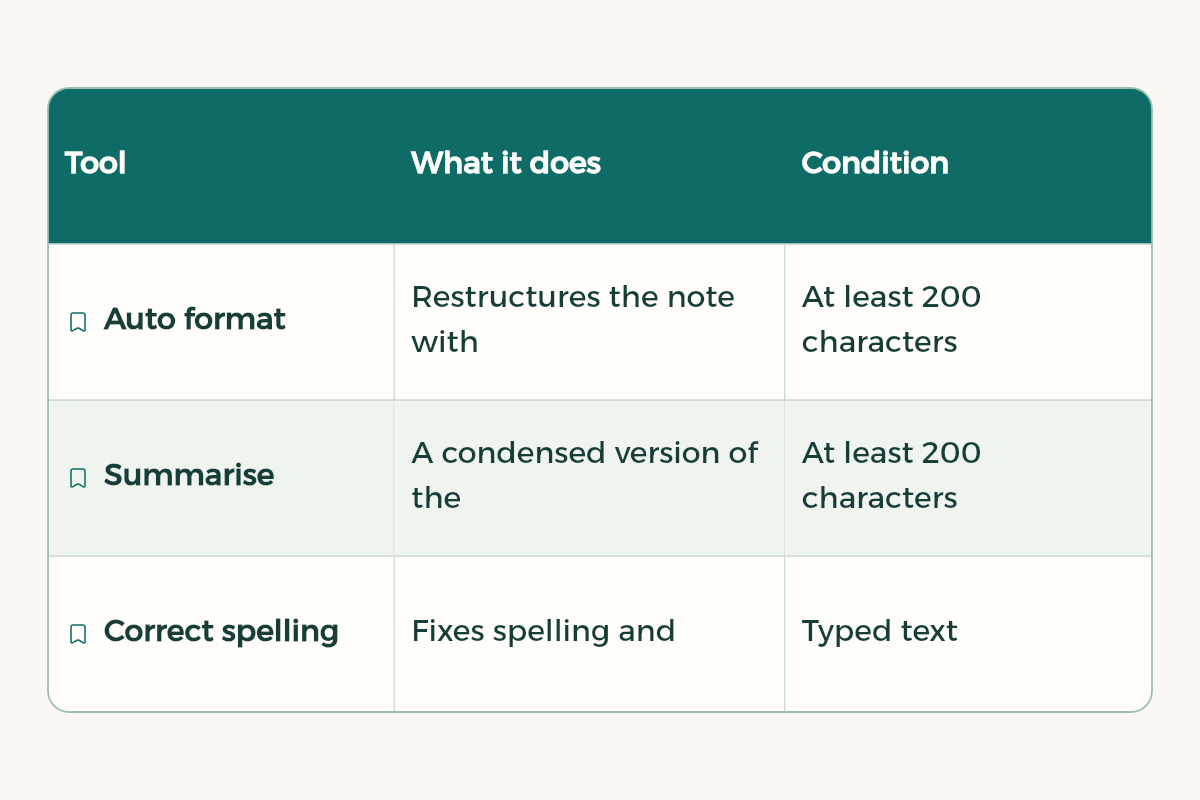
Per Samsung, these AI tools need between 200 and 4,000 characters, a Samsung account and an internet connection. If you handwrite, keep it legible so the assistant reads it correctly. Run Auto format on your quick lecture notes afterwards and you get a tidy summary for revision.
Tip 3: turn a lecture recording into text
Transcript Assist in Galaxy AI converts recordings to text, which you can then summarize or translate. Per the Galaxy AI page for Saudi Arabia, it supports Arabic and works in the preinstalled Voice Recorder app or on files recorded in the Phone app or Samsung Notes, with recordings under 3 hours. It needs an internet connection and a Samsung account login.
- Record the lecture in Voice Recorder after asking your instructor.
- After the lecture open the recording, convert it to text and summarize it in bullets.
- Copy the summary into the course note in Samsung Notes and tidy it with Auto format.
Galaxy AI is supported on smartphones from the S24 series onward, tablet and wearable support depends on model and OS version, and features vary by region and model. Samsung itself notes that AI output accuracy is not guaranteed, so check the summary against the instructor slides.
Tip 4: Writing Assist and Interpreter
- Writing Assist: proofreads, rewrites and summarizes selected text. Handy for checking an email to your instructor before you send it. It supports Arabic per Samsung and has a minimum text length.
- Interpreter: translates speech in real time and shows the text on screen. Useful with a visiting lecturer or at a student conference. It supports Arabic and may need a language pack.
For other AI tools that help with studying, see best AI tools for students.
Tip 5: Secure Folder for private files
Secure Folder is a protected space on your phone for private apps and files, such as ID photos and your academic transcript.
- Turn it on
Open Settings > Security and privacy > More security settings > Secure Folder.
- Sign in
Sign in with your Samsung account, follow the prompts and choose a lock type.
- Add files
Open Secure Folder, tap More options, then Add files, and choose copy or move.
- From Gallery
In Gallery or My Files select the files, then More options > Move to Secure Folder.
If you forget the folder lock, you can reset it with your Samsung account password, so do not lose that.
Tip 6: send files with Quick Share
In Samsung Notes open the note, tap More options then Share, pick a format: Samsung Notes file, PDF or Microsoft Word, then tap Quick Share and choose the device. A quick way to send a summary to a classmate or your laptop without a chat app.
Tip 7: link the phone to your laptop
- On the phone
Open Settings > Connected devices and turn on Link to Windows.
- On the PC
Open the Phone Link app on Windows 10 or 11 and select Android.
- Sign in
Sign in with your Microsoft account and choose your phone or add another device.
- Scan the code
Scan the QR code shown on the PC with the phone, then tap Done.
For Windows itself, such as clipboard history and Snap, see Windows tips for students.
Tip 8: a Samsung phone and tablet together
- Multi control: the tablet keyboard and mouse control the phone. Turn on Wi-Fi, Bluetooth and Multi control on both, then in Settings > Connected devices > Multi control pick the device.
- Continue apps on other devices: open a page in Samsung Internet or a note in Samsung Notes on one device and pick it up from the Recents button on the other. It needs the same Samsung account, the same Wi-Fi network and Bluetooth.
- Samsung DeX: turns the device into a desktop-style workspace on a monitor or TV, by cable or wirelessly from the DeX icon in Quick settings.
If you are considering a tablet for studying, the comparison is in best tablet for studying, and phones are in best phone for students.
Which feature helps most for your major?
| Major | Top feature | Why |
|---|---|---|
| Medicine and health sciences | Writing on PDFs | Annotate anatomy slides and diagrams instead of printing |
| Engineering and computing | DeX and Multi control | A bigger screen and one keyboard for several devices |
| Business and law | Transcript Assist | Transcribe and summarize long lectures |
| Languages and translation | Interpreter and Writing Assist | Live translation and proofreading |
| Every major | Secure Folder | ID files and transcripts in a protected place |
You do not need every feature from day one. Pick one that solves your biggest problem, whether that is piles of paper or long lectures, and make it a habit before moving to the next.
A weekly Galaxy routine
- Before the lecture: import the slides as a PDF into the course folder in Samsung Notes.
- During the lecture: write on the slides and record audio if the instructor allows it.
- After the lecture: transcribe and summarize the recording, then tidy notes with Auto format.
- End of the week: export each course summary as a PDF and Quick Share it to your laptop so you have a copy.
Student prices on Samsung devices
Samsung offers student prices on its phones, tablets and watches. Current savings on tiswa:
| Product | Student price | Regular price | You save |
|---|---|---|---|
| Samsung Galaxy Watch9 40mm | SAR 1,439 | 10% | |
| Samsung Galaxy Z Flip8 256GB | SAR 4,319.10 | 10% | |
| Samsung Galaxy Z Fold8 256GB | SAR 6,659.10 | 10% |
Prices and deals in this article come straight from the tiswa catalogue, so they stay current.