By the tiswa editorial team, from the official sources listed at the end of this guide. How we write our guides
A LinkedIn account restricted notice means LinkedIn has limited some features, either temporarily or indefinitely, while it reviews the account. Your profile and applications can stop working until the matter is resolved. The good news is that LinkedIn provides a verification and review path. The important rule is that no third party can recover your account for a fee. This guide sets out the steps in order.
Why accounts get restricted
According to the Help Center, accounts can be restricted temporarily or indefinitely for violating the Professional Community Policies. Automated activity is treated as a breach of the User Agreement. A student can fall into this without meaning to, for example by trying an app that promises more connections or more profile views. Read the Professional Community Policies before you use any tool that claims to act on your behalf.
Step one: find out what happened
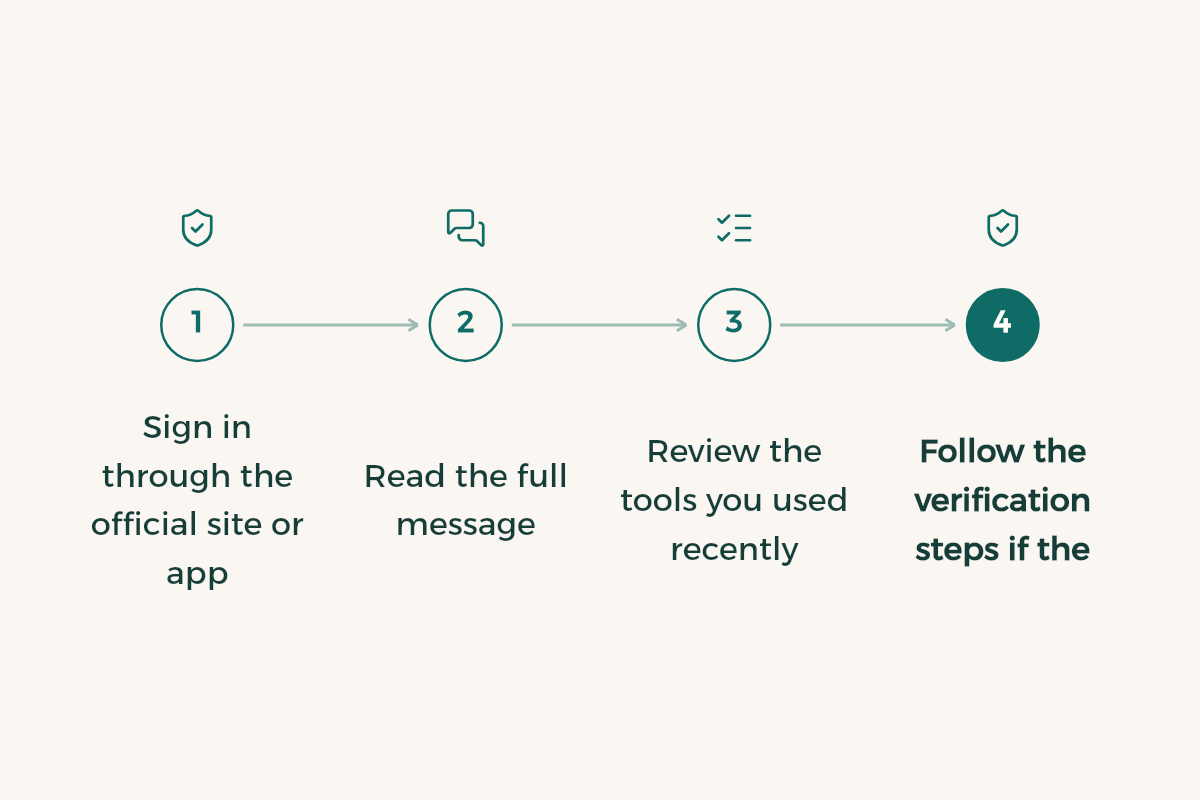
- Sign in through the official site or app
Do not use a link from an email or message you did not ask for.
- Read the full message
The screen usually says what was flagged, whether the restriction is temporary, and what you need to do next.
- Review the tools you used recently
If you recently connected an app or a browser extension that promised more connections or views, remove it straight away.
- Follow the verification steps if the restriction is an error
If you believe the restriction is a mistake, follow the on-screen steps to verify your identity or to ask for a review.
Verifying your identity or appealing
The review path follows what the screen shows you. Start with identity verification if you are asked to complete it, then explain the situation briefly and calmly. If the first attempt does not resolve the issue, use the appeal route described in the Help Center, since appeals are possible for enforcement decisions. Include only what is needed, and keep a copy of every reply you receive, because it is your record if you need to follow up.
If your account was hacked
Signs of a hack include changes you did not make, messages or posts you did not write, or a profile that looks different. Use the Report Unauthorized Account Access or Changes form in the Help Center and include your profile URL. Then change your password from your security settings straight away, and review any devices listed there if that option is available to you. To find the exact link to include, use the profile URL guide.
Recovery scams to avoid
Some pages and people offer to restore your account for money, or ask for your password and verification codes. Do not pay any recovery service, and do not share your password or codes with anyone. Use only the official paths in the Help Center. If a message asks for login details, treat it as a scam, do not reply to it, and report it instead.
Prevention is easier than recovery
- Do not use automated tools to send connection requests, messages or posts. They breach the User Agreement.
- Use a strong password that you do not reuse anywhere else, and store it in a password manager.
- Turn on two-step verification if it is available to you in your security settings.
- Never share a verification code, even with someone who says they are from support.
- Keep the email address on your account secure, since it is a main route for password resets.
- Follow notifications only through the official site or app.
Sending connection requests by hand
If you send many requests in a short time, the activity can look unusual. Work manually, write a short personal note for each person, and spread your outreach over several days. The connection message guide has templates for recruiters, alumni and lecturers. Ten thoughtful messages are worth more than a hundred empty ones.
After the restriction is lifted
When the restriction is lifted, review your profile and make sure the activity you do from now on follows the policies. Do not go back to the tools that caused the problem. If you need to tidy or rebuild your profile, the LinkedIn for students guide gives you the order to work in.
Keep a timeline while you wait
Write one note with the date of each important event: when you last signed in, which tools you used, and any message you received from the site. This record helps you explain the situation clearly if you appeal, and it makes your reply shorter and more precise than a general story.
Be wary of fake support messages
Some accounts pretend to be support, and some pages promise an instant fix. Do not open their links or download their files, and do not enter your password into a form you reached from a message. If in doubt, type the official address yourself, then follow the route described in the Help Center.
Review the tools connected to your account
Go through the apps and browser extensions linked to your account, and remove any tool whose source you cannot confirm or whose purpose you cannot describe in one sentence. Be careful with pages that ask you to sign in with your LinkedIn details in an unfamiliar window, because that method is sometimes used to grant access you do not need. If a tool sent activity in your name without your knowledge, remove it straight away and then report the incident through the Help Center.
Keep a copy of every message you send to support and every reply, with the case number if there is one. If it drags on or you need a second appeal, these copies save you explaining everything from scratch.