By the tiswa editorial team, from the official sources listed at the end of this guide. How we write our guides
How to delete a LinkedIn account is a question to answer carefully, because deleting is permanent and cannot be undone. Do not press the final button before you save your data and know what you will lose. Some people delete an account in a moment of frustration, then discover later that recommendations and endorsements have gone with it. This guide sets the order: download your data first, then close the account, and consider the lighter options before you decide.
Closing versus hibernating
LinkedIn offers two different options. Closing the account is permanent: it removes the account and the recommendations and endorsements attached to it. Hibernating hides your profile from everyone, including connections and search results, and you can reactivate it after twenty-four hours. Hibernating suits anyone who wants a break without losing their work.
Step one: download a copy of your data
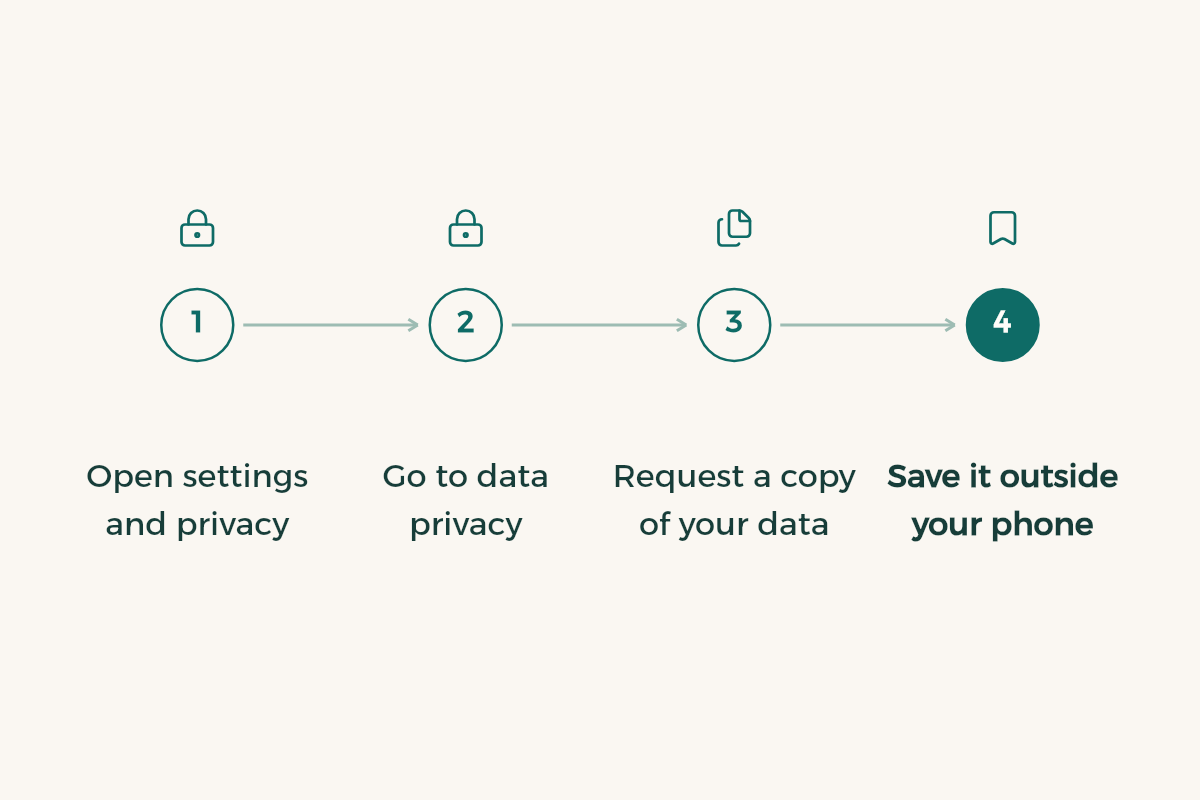
- Open settings and privacy
On desktop, choose Settings and Privacy from your account menu. Labels can differ in the mobile app.
- Go to data privacy
Open the Data privacy section.
- Request a copy of your data
Choose the option to get a copy of your data and follow the instructions. Pick the files you need.
- Save it outside your phone
Move the file to a laptop or an external drive, then open it and check that your CV details, projects and certificates are there.
Step two: close the account
- Go to account preferences
In Settings and Privacy, open Account preferences.
- Choose close account
Find the option to close your account and follow the screens. The page may ask you to confirm the decision more than once.
- Read the warning
Read what you will lose on the screen. It includes the recommendations and endorsements you would lose for good.
- Confirm only when you are ready
Complete the final step only after you have checked your saved copy.
What you lose when you close
The most important loss is recommendations and endorsements. If a lecturer or a training supervisor wrote you a recommendation, it goes with the account. If you need that text in your CV, save it in a document outside LinkedIn before you start. Certificates and projects you added to your profile are removed with the profile, so keep copies of the files and the links you use.
When hibernating is the better choice
If your reason is noise, unwanted messages or a profile you want hidden for a while, hibernating or the privacy settings may solve the problem without losing your work. You can hide your public profile from non-members and search engines, or turn on private mode so viewers see LinkedIn Member instead of your name. The details are in the private mode guide.
Checklist before you delete
- Open the copy you downloaded and check its contents.
- Save the text of every recommendation you need.
- Make sure you do not need the account for an application that is still open.
- Keep your login details safe in a password manager.
- Tell current contacts how to reach you by email or phone, so the conversation does not stop.
The User Agreement allows one account per person, under a real name. If you later need a new profile, plan it first and use the account creation guide to set up the first steps in order.
After closing or hibernating
Closing is final, so do not expect the account to return on its own. Hibernating is different: you can reactivate the profile, but only after twenty-four hours have passed since you hibernated it. If you decide to rebuild your profile, work through the sections one at a time, using the LinkedIn for students guide as your order of work.
Ask whether you really need to delete
Start with the real reason. If you dislike seeing your activity, the settings are enough. If you want a fresh professional identity, change the name, headline and About section first, because a new version of the profile changes the impression without losing your recommendations. If you are embarrassed by old posts or comments, review them and remove what no longer fits. That is quicker than closing the whole account.
Questions to answer before you confirm
- Do I have recommendations that I have not saved outside LinkedIn?
- Do I need the old address on CVs or documents I have already sent?
- Have I tried hibernating or the privacy settings first?
- Will an open application suffer if my profile disappears now?
If the answer to every question is no, closing is a reasonable decision. If any answer is yes, stop and save what you need first.
If you come back later
If you close the account and return later, the recommendations you lost will not come back. Plan for that now: ask the people who wrote for you to keep a copy, and do not rely on the account alone to store their words. When you need new recommendations, ask people who know your work directly, and use the recommendations guide to write a respectful request.
What to keep before you close
Open every recommendation written for you and copy its full text into a separate file that shows the date and the author role. If a recommendation was written in English, keep the English text as it is, and do not translate it yourself to present it as an official document. Certificates and projects are removed with the profile too, so keep each PDF, project image and short note explaining your role in one folder on your computer. Your CV then stays supported by evidence even if the account changes.
Remember that links to your old profile on your CV, in your email signature or on other accounts stop working once the account is closed. Remove or update them the same day, so nobody clicks a link and lands on an error page.