By the tiswa editorial team, from the official sources listed at the end of this guide. How we write our guides
iPhone battery health is the first thing to let you down on a long university day: a morning lecture, the library at noon, a group project at night. The good news is that the iPhone gives you official tools to see exactly how the battery is doing, what is draining it, and how to extend its lifespan. This guide goes through each setting by the name you see on the phone.
Battery life versus battery lifespan
Apple separates two things: battery life, which is how long the phone runs before it needs charging, and battery lifespan, which is how long the battery lasts before it needs replacing. The first depends on how you use the phone today; the second depends on charge cycles, heat and charging habits. This guide covers both.
How to check iPhone battery health
- Open Settings
Go to the Settings app on your iPhone, then tap Battery.
- Open Battery Health
On iPhone 15 or later, tap Battery Health. On iPhone 14 or earlier, tap Battery Health & Charging.
- Read the numbers
You see the battery capacity relative to when it was new. On iPhone 15 or later you also see the cycle count, manufacture date and first use date.

Capacity drops over time because lithium-ion batteries age chemically, which is normal on every phone. If the phone recommends a battery service, Apple says it should be done by Apple or an Apple Authorized Service Provider.
How many charge cycles is the battery built for?
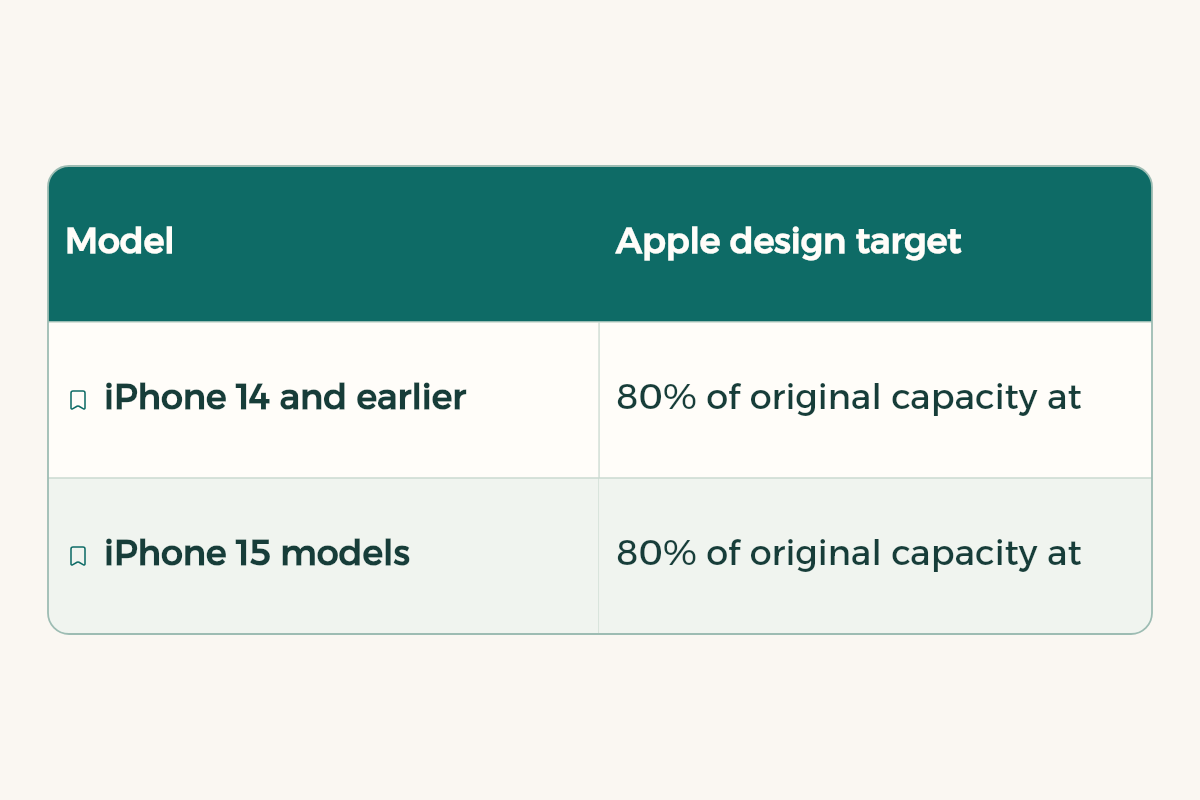
Apple designs iPhone batteries to keep 80% of their original capacity after a set number of complete charge cycles under ideal conditions:
| Model | Apple design target |
|---|---|
| iPhone 14 and earlier | 80% of original capacity at 500 complete charge cycles |
| iPhone 15 models | 80% of original capacity at 1000 complete charge cycles |
As battery health drops, so can its ability to deliver peak performance, so iOS manages the maximum performance of some components such as the CPU and GPU only when needed to prevent unexpected shutdowns. If you see a battery service message, Apple says it does not indicate a safety issue, and an authorised service provider can replace the battery to restore full performance and capacity.
Example: reading your numbers
- A student with an iPhone 15 model sees 92% capacity and 300 cycles. That is far from the design point, so the issue is daily use, not the battery. Start with the daily usage section.
- A student with an iPhone 13 sees 81% and close to 500 cycles. That is expected for its age. If a charge no longer lasts the day even with Low Power Mode, a battery replacement through Apple or an authorised provider costs less than a new phone.
What is draining your battery today?
Open Settings > Battery. The Daily Usage section compares today with previous days: blue when usage is similar or lower, orange when it is higher than usual, with the top three apps or activities behind it. For more detail, tap View All Battery Usage, then tap a day.
| What you see under an app | What it means | What to do |
|---|---|---|
| On screen | The app was open in front of you for a long time | If it is a social app, give it a limit in Screen Time |
| Background | The app worked while closed: music, photo sync, mail | Check the app settings or pause syncing during class |
| Cellular coverage | You used the app with a weak signal | In halls with weak signal, use the university Wi-Fi |
| Notifications | The app kept waking the phone to check for updates | Reduce its notifications or silence it in a Focus |
Low Power Mode and Adaptive Power
- Open Power Mode
On iPhone 15 or later: Settings > Battery > Power Mode. On iPhone 14 or earlier: Settings > Battery.
- Turn on Low Power Mode
Tap Low Power Mode. It reduces power use and focuses on essentials such as calls, messages and the internet.
- Or let it run itself
On iPhone 15 Pro or later, turn on Adaptive Power. It adjusts performance to your usage and can turn on Low Power Mode automatically at 20%.
Optimized Battery Charging and charge limit
These two settings protect the lifespan of the battery, not just today:
- Optimized Battery Charging: the phone pauses at 80% overnight and finishes before you usually unplug. It needs a steady routine, so it works best at home or in student housing. On iPhone 15 or later it is in Settings > Battery > Charging; on earlier models it is in Battery Health & Charging.
- Charge limit: on iPhone 15 or later you can set a maximum, such as 80%, in Settings > Battery > Charging. The phone occasionally charges to 100% to keep the percentage accurate.
- Need a full charge before a long day? In Settings > Battery tap Resume Charging, or Charge to 100% if a charge limit is on.
A battery plan for a long campus day
| When | What to do |
|---|---|
| Before you leave | Check the percentage, and if the day is long, resume charging to 100%. |
| Morning lectures | Turn on Low Power Mode from Control Center and lower brightness. |
| Library | Use campus Wi-Fi instead of cellular data if the signal is weak. |
| Evening | Check daily usage: if it is orange, find the app behind it and adjust its settings. |
You can make some of these steps automatic with a simple automation in the Shortcuts app. Ready ideas for students are in iPhone shortcuts for students.
Habits that protect the battery
- Do not charge or leave the phone somewhere hot for long, such as a car in the sun. Apple calls this out specifically in its battery advice.
- Turn on Battery Percentage in Settings > Battery so you know where you stand before leaving home.
- If storage is full and the phone keeps re-syncing, free up space. See free up iPhone storage.
To cut the notifications that wake the phone while you study, see iPhone focus mode for studying. If you are thinking of replacing the phone altogether, compare prices in the Apple student discount.