By the tiswa editorial team, from the official sources listed at the end of this guide. How we write our guides
You bought a new phone, moved your apps, and sold the old one two days later. In exam week you look for first-semester notes and they are gone. They lived on the first device alone. Deleting them was not only your mistake: nobody told you that a notes app uploads nothing without an account switched on.
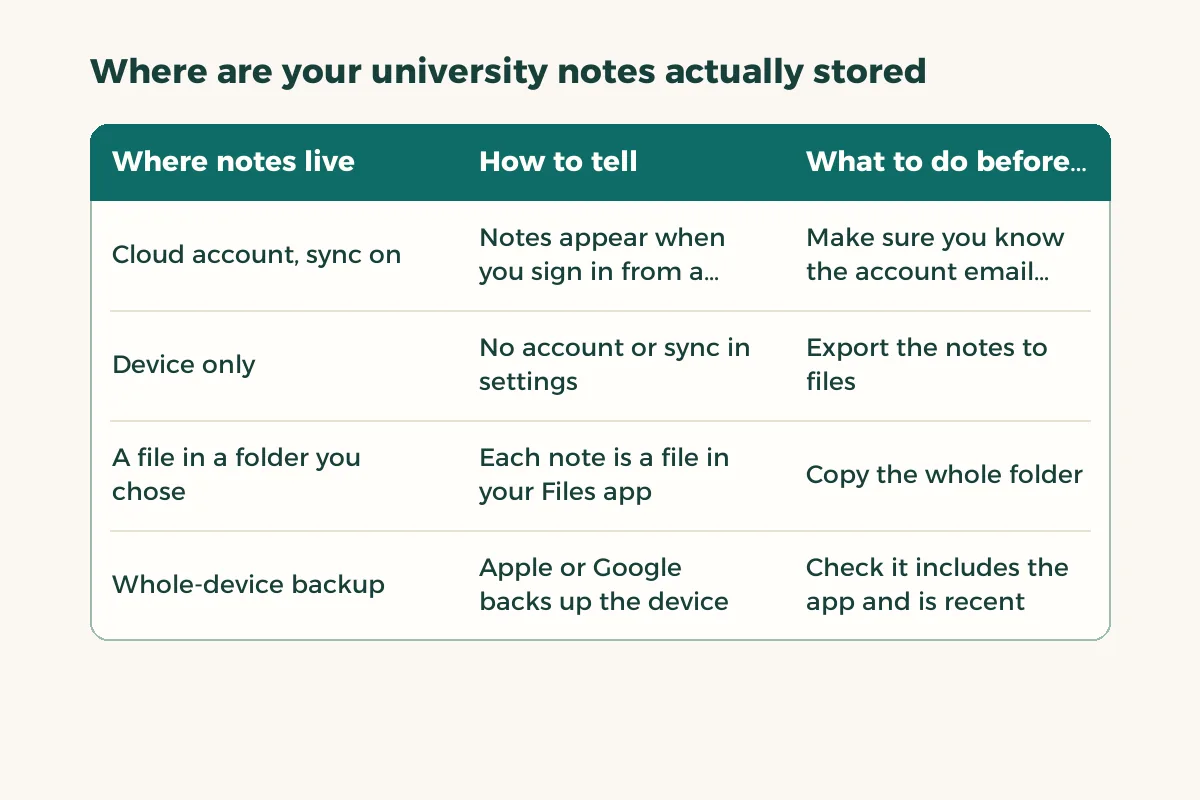
Where are your university notes actually stored?
This comes first, because it decides everything after. Some apps keep your notes in your cloud account, so they appear on any device you sign in on. Some keep them on the device alone unless you switch on sync or backup. Some keep them in a file you place yourself. Open the app’s settings and look for an account name or a sync option. If you find no linked account, assume the notes are on the device only and start by exporting them.
| Where notes live | How to tell | What to do before the change |
|---|---|---|
| Cloud account, sync on | Notes appear when you sign in from a browser | Make sure you know the account email and password |
| Device only | No account or sync in settings | Export the notes to files |
| A file in a folder you chose | Each note is a file in your Files app | Copy the whole folder |
| Whole-device backup | Apple or Google backs up the device | Check it includes the app and is recent |
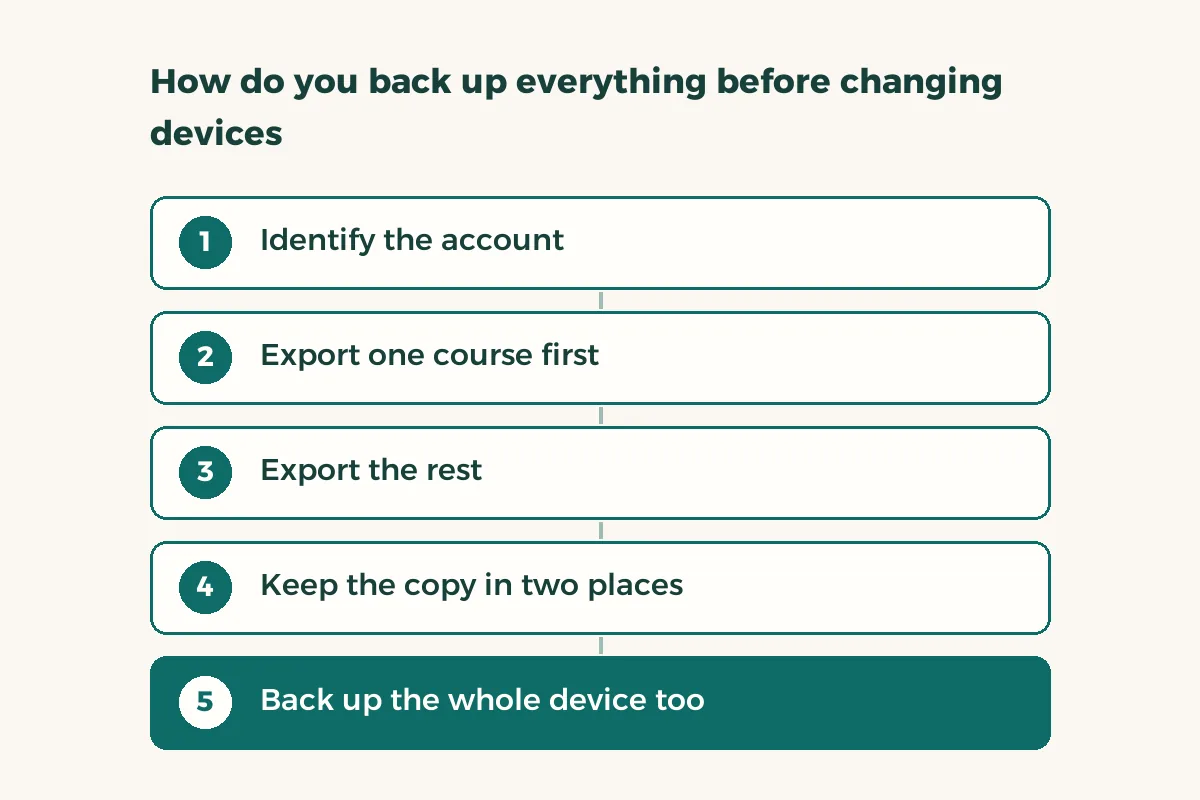
How do you back up everything before changing devices?
Exporting does not depend on one app. The principle is the same: take the notes out as files in a format that opens anywhere, and store them somewhere other than the device. Apple Notes on a Mac lets you export or print notes to PDF,2 and a Google account lets you download your data from the services linked to it.3 Many other apps export text or PDF from the share or export menu. Look for that option in your app, and if there is none, photograph the important pages and store the images.
- Identify the account
Open settings and see where notes are saved. Write the account name and email on a piece of paper and check you remember the password.
- Export one course first
Pick one course and export it as PDF or text. Open the file and check that images and tables came through.
- Export the rest
Repeat for each course and keep everything in a folder called notes backup, with the course code on each file.
- Keep the copy in two places
One in the cloud and one on an external drive or a laptop. A copy on the device you are replacing does not count.
- Back up the whole device too
Make a full backup of the phone as Apple describes,1 and check its date and size.
Does a full device backup carry your notes over?
Sometimes, and it depends on where the notes are saved. A phone backup keeps app settings and data, but some apps store their notes in their own account and never enter the device backup.1 So do not rely on it alone. After restoring, open the notes on the new device and verify. If you have a laptop, back up study files before a laptop repair covers files rather than notes.
How do you check the backup works before wiping the old device?
- Open three old notes
Choose one from the start of term, one with images and one handwritten, and open them on the new device.
- Search for a word
Search for a word you know is in an old note. If it is not found, the index has not rebuilt yet or the note did not arrive.
- Open the exported files
Open two exported files on a different device to prove they open outside the app.
- Wait
Do not wipe the old device until two weeks of real use. Problems show up when you need the note, not on moving day.
What about handwritten notes on an iPad?
These are the hardest to move because the app may store them in its own format. Export them as PDF from the app before the change, and keep the original app data if you will move to a device that supports the same app. To compare apps see note-taking apps for iPad, and for general methods see how to take notes. Before buying any new device, read do you need an iPad.
Which note taking app syncs across devices?
Any notes app tied to a cloud account you can sign in to on every device syncs across devices; the difference between apps is which accounts and platforms they support, so check that before you commit. Pick one that exports to an open format, so you are never locked in. Then deal with accounts: two-step verification is where students get stuck most: the code goes to the old phone you just sold. Before the change, sign in to your notes app and your university email from the new device while the old one is still beside you, and keep recovery codes if your service offers them. More tools are listed in student discounts in Saudi Arabia.
What mistakes lose your notes during a move?
The first is relying on a password you cannot recall: the account exists but you cannot sign in. Write down the email linked to the app and test signing in from a browser before you touch the device. The second is an incomplete export: open a note containing an image and a table after exporting, because some formats drop attachments without telling you. The third is moving files onto a new device you have not tested yet, so if it fails nothing is left. The fourth is selling the old device before a full term has passed, the moment when everything you forgot to move comes to light.
For files that are not notes, such as slides and projects, use cloud sync plus a separate copy; details are in sync study files between phone and laptop. Google Drive’s version history helps if a file changes by accident.4