By the tiswa editorial team, from the official sources listed at the end of this guide. How we write our guides
A student opens Microsoft’s site in the first week, sees subscription prices and goes hunting for a discount code. That is the wrong order. The first question is not how much to pay but whether you need to pay at all. Many universities in the Kingdom give students an account on the university domain, and that account is what Microsoft uses to decide eligibility.
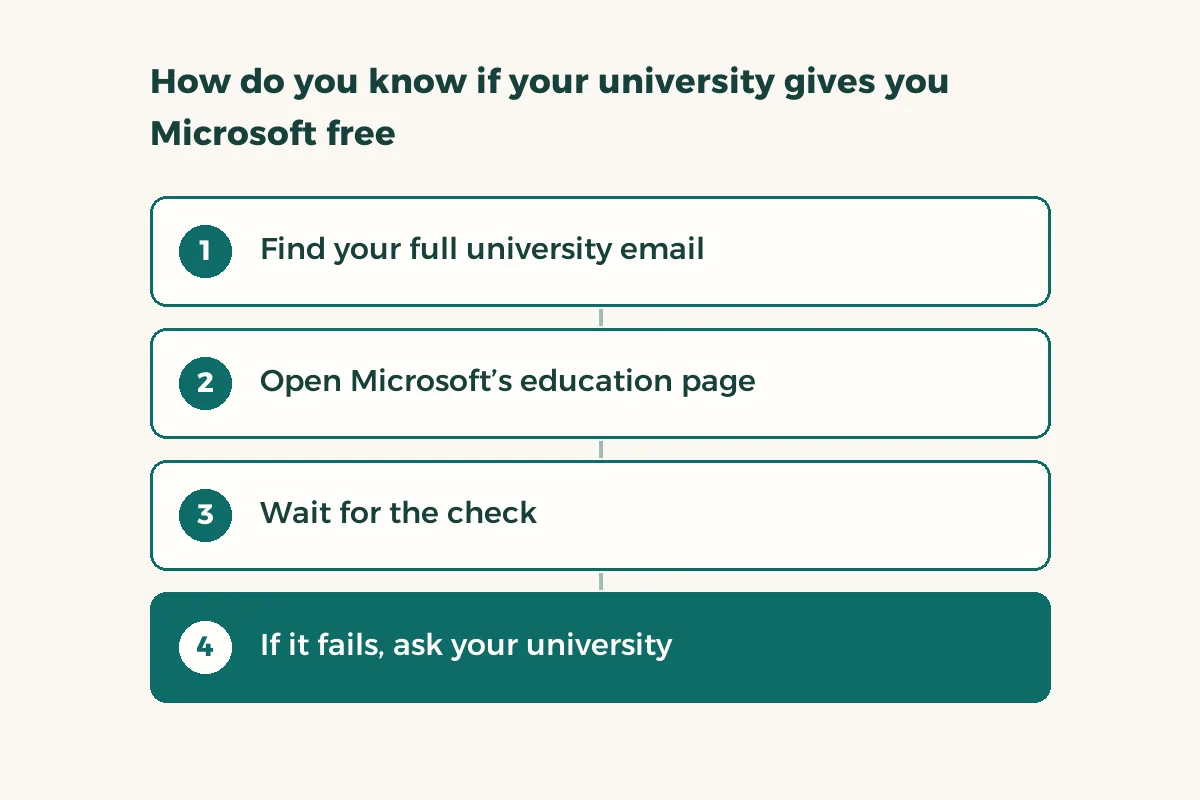
How do you know if your university gives you Microsoft free?
Microsoft says students and educators with an eligible school email can get Office 365 A1 at no cost, and that this lasts while you attend the qualifying institution.1 The word that matters is eligible. The institution is what gets checked, not you. One university can qualify while another does not, and I cannot tell you from here which Saudi universities do, because that changes. Testing your own email is more accurate than any list.
- Find your full university email
Usually a name or student number, then @, then the university domain. If you do not remember it, look in your student portal or Blackboard account details.
- Open Microsoft’s education page
Search for Office 365 Education on Microsoft’s site and enter your university email when asked.1
- Wait for the check
Microsoft says verification is often instant and can take up to a month for some institutions.1
- If it fails, ask your university
Write to the IT deanship with one specific question: does the university enable Microsoft education services for students? Ask for the answer in writing.
What does Office 365 Education include?
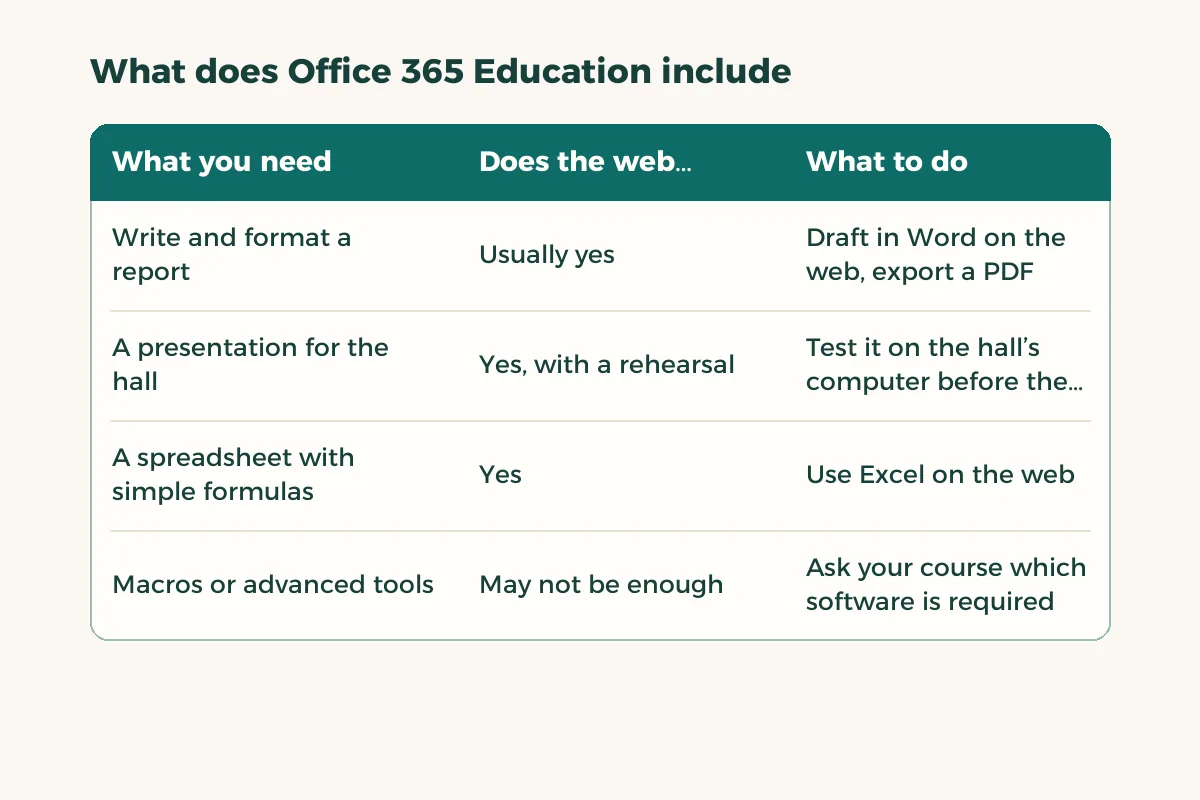
According to Microsoft’s page, the A1 plan includes web versions of Outlook, Word, Excel, PowerPoint and OneNote, plus two PC-only apps, Publisher and Access.1 The page does not state outright that Teams sits inside the plan, so do not assume it. Read what appears after you sign in. It also means you will often work in the browser rather than installing full Word on your laptop.
| What you need | Does the web version cover it? | What to do |
|---|---|---|
| Write and format a report | Usually yes | Draft in Word on the web, export a PDF |
| A presentation for the hall | Yes, with a rehearsal | Test it on the hall’s computer before the day |
| A spreadsheet with simple formulas | Yes | Use Excel on the web |
| Macros or advanced tools | May not be enough | Ask your course which software is required |
Is there a free version if my university does not qualify?
Yes. Microsoft notes that people who do not qualify can still use free web versions of Word, Excel and PowerPoint through Microsoft 365 for the web.12 Those cover most everyday assignments. The limits show up in advanced features and offline work. If you write most of your tasks on campus or at home on a stable connection, you may barely notice the gap.
Can the eligibility be taken away?
Microsoft says eligibility may be re-verified at any time.1 The practical meaning for a student is simple: when you graduate or leave, the account may stop working, and so may the files stored in it. Copy what matters to storage you own a term before graduation, and never leave your only graduation project inside an account that ends with your studies.
- Export big projects as PDF and DOCX to your own device.
- Keep a second copy in storage that is yours.
- Do not tie important personal accounts to your university email.
When should you pay, and when not?
Pay when your course requires a specific program that does not run on the web version and your university does not provide it. Do not pay a reseller who promises a discount on a service the institution gives free. If you do see an offer, compare the discount percentage with the price on the official site on the day you buy, not with an old screenshot from a friend.
If Word is your daily tool, read Microsoft Word for students and how to protect your drafts in autosave and version history. And remember that your student card is what some providers ask for as proof, which is separate from your university email.
What mistakes do students make when activating the account?
- Entering a personal email on the eligibility page instead of the university one.
- Ignoring the verification message because it landed in junk.
- Forgetting the university password just before exams.
- Keeping one copy of everything in a single account.
How do you organise files inside a university account?
An eligible account gives you space and tools, but it does not tidy anything for you. By mid-term most students have a file called “final report”, another called “final report new” and a third called “the last final”. That mess costs an hour on submission night. Try a simple system that needs ten minutes in the first week.
- Create one folder per course
Name it with the course code and the lecturer, then the term.
- Use a fixed file-name pattern
Course, then file type, then number, such as “Report 2”. Never put the word “final” in a file name.
- Save a PDF at every submission
A PDF keeps its layout on the lecturer’s machine and is your proof of what you handed in.
- Review the folders every two weeks
Delete duplicate drafts and move finished work into an archive folder.
Do you need a backup outside the account?
Yes, and this is the most important part of the article. US cybersecurity guidance recommends keeping backups in more than one place, because a single copy means one failure loses everything.3 Your risk is doubled: the account may end at graduation, and it may be locked for a technical reason. Keep your important project on your own device and another copy in personal storage. As an example, if your research file vanished the day before submission, yesterday’s copy saves you and an unsaved one does not.
If you share files with a project group, agree at the start who owns the master copy. Do not let everyone edit a separate file and merge them on submission night.