By the tiswa editorial team, from the official sources listed at the end of this guide. How we write our guides
A LinkedIn QR code opens your profile when someone scans it, so you can share your profile without typing a link. It is most useful at a university career fair, after a short conversation with an engineer or recruiter at an event, or on a poster for your graduation project. The idea is simple, but the details matter: where to find the code, what happens when someone scans it, and what it cannot do for you.
Where the code lives
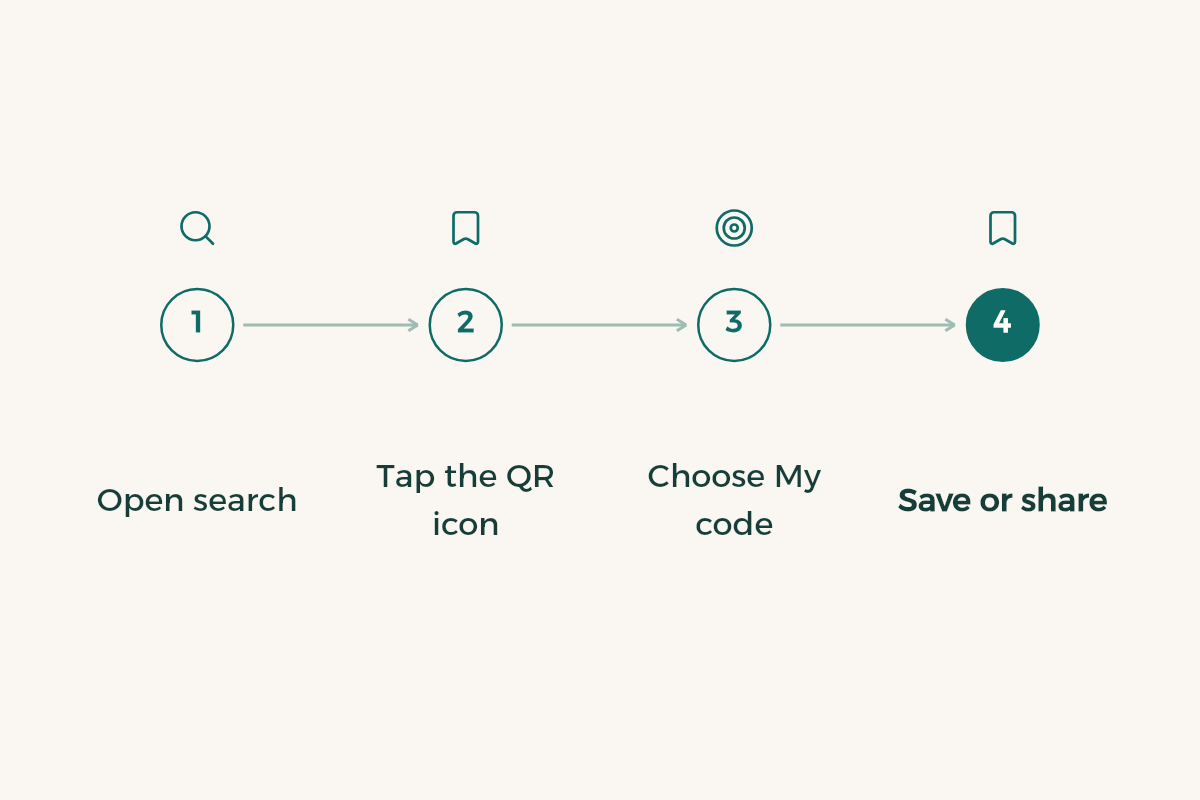
The QR code is in the LinkedIn mobile app, not on the desktop site. Open the app, tap the QR icon in the search bar, then choose the My code tab. If you cannot see the icon, update the app, because menus can differ slightly between versions. Prepare the code on your phone before the day of the event, not in the last minute.
- Open search
From the home screen, tap the search bar at the top of the app.
- Tap the QR icon
The QR icon sits beside the search bar.
- Choose My code
This tab shows your own code only, not anyone else’s.
- Save or share
Share the code, or save it to your photos so you can place it on a CV, a card or a poster.
What happens when someone scans it
When someone scans your code with the LinkedIn app, your profile opens. Scanning does not send a connection request, so the person still has to invite you the usual way. Treat the code as a doorway to your profile, not a replacement for a short message. The conversation that follows is what makes a contact useful.
You can work the other way too. The Scan tab lets you scan someone else’s code. After a meeting or an event, this is a fast way to find the person, and then you can send a short note. For wording, read the connection message guide.
Where to put it
A code works in at least three places: next to your link on your CV, on a card you hand out at a career fair, and on the poster or project page for your graduation work. Print it large enough to scan from the distance a visitor would stand, then test it on a different phone before you print a batch.
- At a university fair: print it on a small card with your name, major and the kind of placement you want, so a visitor knows who you are at a glance.
- On a project poster: place it near your name and the project title, so people who care about the topic can follow you.
- On a CV: put it next to your public profile link, because some people prefer to scan and others prefer to type.
[Full name]
[Major] at [University]
Looking for a co-op placement in [field]
Three checks before you print
- Scan it with another phone
Use a phone that is not yours and confirm that the profile opens.
- Review the profile first
A code that opens an empty profile wastes the moment. Check your photo, headline and About section first, because they are what a visitor sees.
- Test the size
Scan from the distance you expect people to stand. If it fails, make the code larger and leave a clear white margin around it.
When a code is less useful
A code works best when there is a real reason for the connection: a conversation at a fair, a project presentation, or a short meeting. Handing it to everyone you pass without context gives strangers a profile they have no reason to open. Make the code part of a real exchange and it will do far more for you.
Why a code beats a link at an event
A long link has to be typed by the visitor, and it is often mistyped or forgotten by the time they get home. A code removes that step and opens the profile in one movement, from the same phone the visitor is holding. A typed link still has its place on a printed CV, where a reader can copy it when needed. Use both, because each covers a different moment.
Keep personal details off the card
A card you hand out at a fair is not the place for your personal phone number, home address or private email. Your name, major and either the code or the link are enough. If someone wants to reach you, they can do it through LinkedIn itself. It is a simple rule that protects you and keeps the card easy to read.
After the event, follow up within days
A code collects names, but the real opportunity starts after the event. Go back to the people you scanned or met, and send each one a short message that mentions the place or the conversation you had. A message with one clear detail gets far more replies than a generic one. When someone replies, thank them and continue with one specific question.
Before you share the code
The QR code takes people straight to your profile, so its value depends on what they find there. Check your profile with the LinkedIn profile review checklist, and customise your profile URL so it is short and clear when you need to type it on a CV or in an email instead of the code. If your profile is not complete yet, start with LinkedIn for students before your first event.